

This guide explains how to connect a Microsoft Entra tenant to Production Assist so users from a Microsoft Entra group can be synchronized into Production Assist.
The screenshots in this guide show the Microsoft Entra admin center with an app registration named Production-Assist, API permissions for Microsoft Graph, and a tenant named GTG.
Before you start, make sure you have:
Access to the Microsoft Entra admin center:
https://entra.microsoft.com
An administrator account with permission to grant Microsoft Graph application permissions. For Graph application permissions, use one of these roles:
Access to the Production Assist organization settings where the Entra connection will be saved.
A Microsoft Entra group that contains the users who should get access to Production Assist. The group must be named exactly:
Azure_APP_Production-Assist
Users in the group should have a usable email address or user principal name.
The setup has six parts:
Production-Assist app registration in Microsoft Entra.Production Assist uses two separate Entra functions:
Go to:
https://entra.microsoft.com
Sign in with an administrator account.
In the left sidebar, open:
Entra ID
Make sure you are in the correct tenant. In the tenant overview screen, confirm the tenant name and tenant ID.
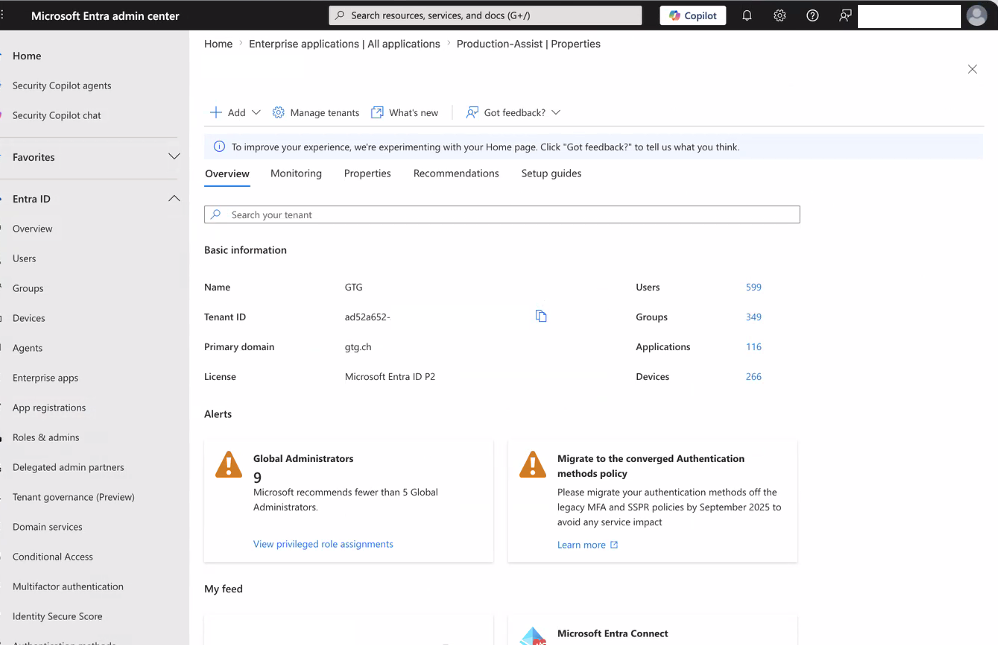
The tenant overview confirms that you are working in the correct tenant and shows the tenant ID you need later.
If the app registration already exists, open it:
In the left sidebar, go to:
Entra ID > App registrations
Select:
All applications
Search for:
Production-Assist
Open the app registration.
If the app registration does not exist, create it:
Go to:
Entra ID > App registrations
Click:
New registration
Use this name:
Production-Assist
For supported account types, select:
Accounts in this organizational directory only
For the redirect URI, select the Web platform and enter this exact address:
https://www.production-assist.com/login/azure-redirect
Click:
Register
When signing in, Production Assist requests an OpenID Connect ID token through the hybrid flow. The app registration must therefore be configured as a web application and allowed to issue ID tokens.
In the app registration, open:
Authentication
Under Platform configurations, check whether a platform of type Web already exists. If not, select:
Add a platform > Web
Under Redirect URIs, enter this exact address:
https://www.production-assist.com/login/azure-redirect
Make sure to use https, include the full path, and not add a trailing slash.
Under Implicit grant and hybrid flows, enable:
ID tokens (used for implicit and hybrid flows)
The Access tokens option does not need to be enabled for Production Assist.
Click Save.
Alternatively, you can verify the setting in the app manifest. It should look like this:
"web": {
  "redirectUris": [
    "https://www.production-assist.com/login/azure-redirect"
  ],
  "implicitGrantSettings": {
    "enableIdTokenIssuance": true,
    "enableAccessTokenIssuance": false
  }
}
On the app registration overview page, copy these values:
You will enter both values in Production Assist later.
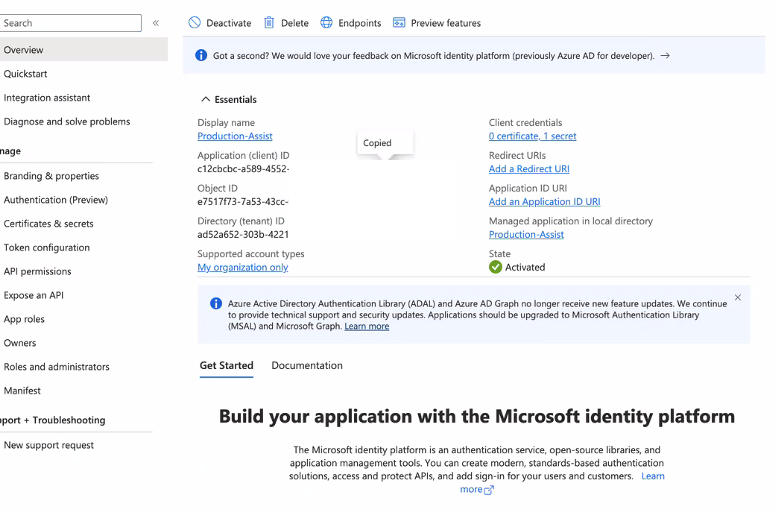
Use the Overview page to verify both IDs before you continue.
In the app registration, open:
Certificates & secrets
Open:
Client secrets
Click:
New client secret
Enter a description, for example:
Production Assist AD Sync
Choose an expiration period according to your company policy.
Click:
Add
Copy the secret Value immediately.
Important: copy the secret Value, not the secret ID. Microsoft only shows the secret value once.
You will enter this value in Production Assist as the client secret.
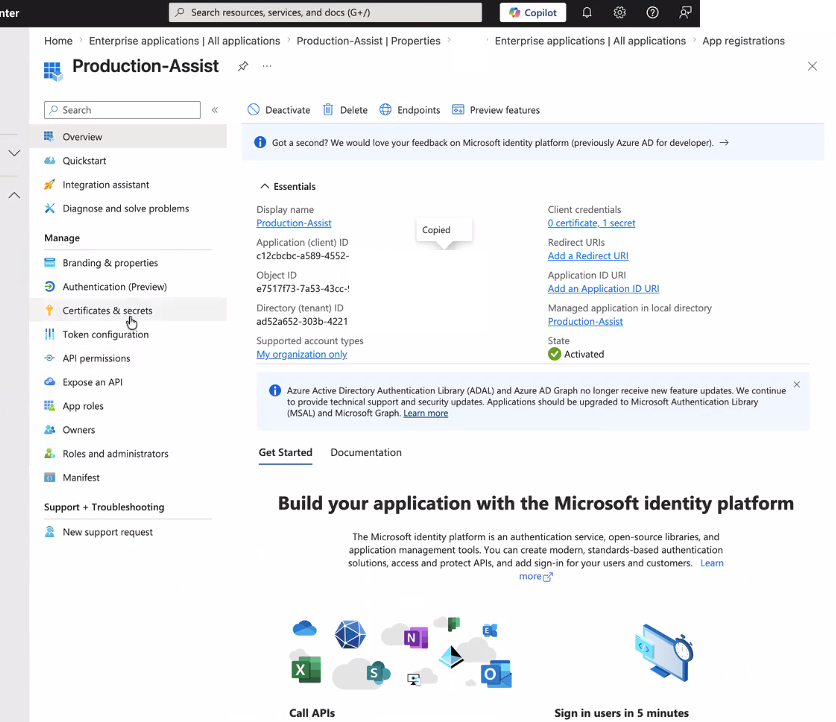
The Certificates & secrets area is where you create and later rotate client secrets.
In the app registration, open:
API permissions
Click:
Add a permission
Select:
Microsoft Graph
Select:
Application permissions
Do not select Delegated permissions. Production Assist runs the sync in the background without a signed-in Microsoft user.
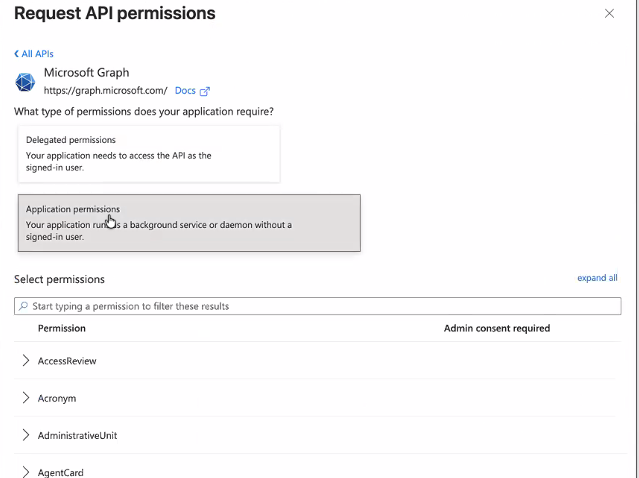
Select Application permissions so the sync can run in the background without a signed-in Microsoft user.
Production Assist needs permission to find the access group and read its members.
Add these Microsoft Graph Application permissions:
User.Read.All
Group.Read.All
GroupMember.Read.All
In the permission search field, type:
group
Expand:
GroupMember
Select:
GroupMember.Read.All
Do not select:
GroupMember.ReadWrite.All
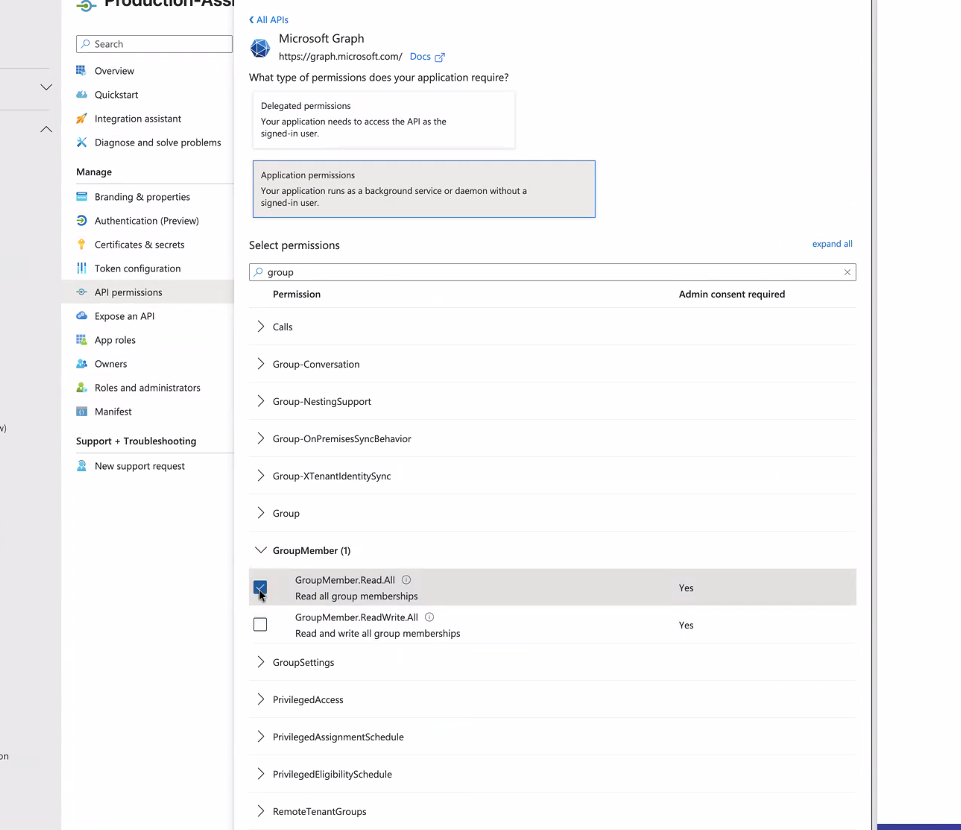
Make sure you select GroupMember.Read.All under GroupMember, not GroupMember.ReadWrite.All.
In the permission search field, type:
user
Expand:
User
Select:
User.Read.All
In the permission search field, type:
group
Expand:
Group
Select:
Group.Read.All
After selecting all three permissions, click:
Add permissions
After adding the permissions, they appear in the configured permissions table.
If your app registration already shows a default delegated permission such as User.Read, you can leave it in place. Production Assist uses User.Read.All, Group.Read.All, and GroupMember.Read.All as Application permissions for the background sync.
Adding permissions is not enough. An administrator must grant tenant-wide consent.
Stay on:
API permissions
Click:
Grant admin consent for <tenant name>
Confirm the consent dialog.
Check the Status column. The permissions should show admin consent granted for the tenant.
If the button is disabled, your account probably does not have enough administrative rights.
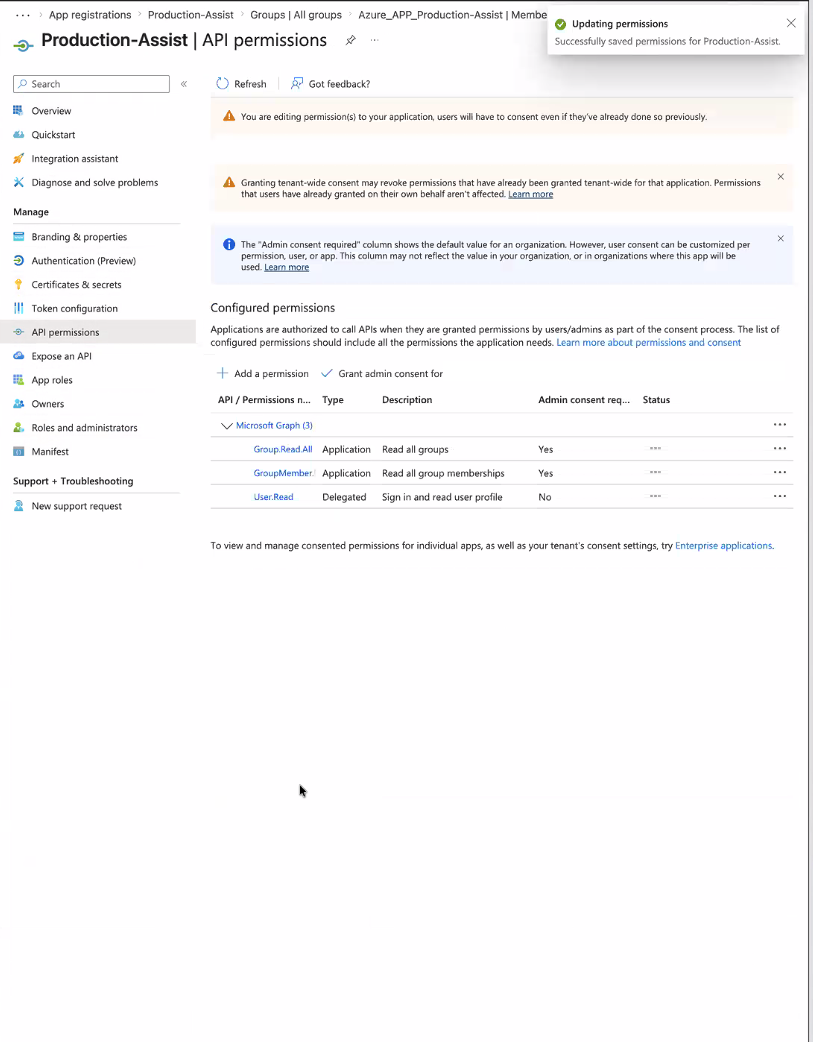
The configured permissions view should show User.Read.All, Group.Read.All, and GroupMember.Read.All under Microsoft Graph and let an administrator grant tenant-wide consent.
Production Assist looks for a group with this exact display name:
Azure_APP_Production-Assist
To create or verify the group:
In Microsoft Entra, go to:
Entra ID > Groups
Select:
All groups
Search for:
Azure_APP_Production-Assist
If the group does not exist, click:
New group
Use:
Group type: Security
Group name: Azure_APP_Production-Assist
Add all users who should get access to Production Assist.
Save the group.
Important: Production Assist reads direct group members. Avoid relying on nested groups unless the sync implementation has been changed to support them.
In Production Assist, open the organization or tenant settings for the customer that should be connected to Microsoft Entra. In the section Configure an AD Server for authentication, enter these values:
| Production Assist field | Value from Microsoft Entra |
|---|---|
| AD Master Tenant Id | Directory (tenant) ID |
| AD Master Client Id | Application (client) ID |
| AD Master Client Secret | Client secret Value |
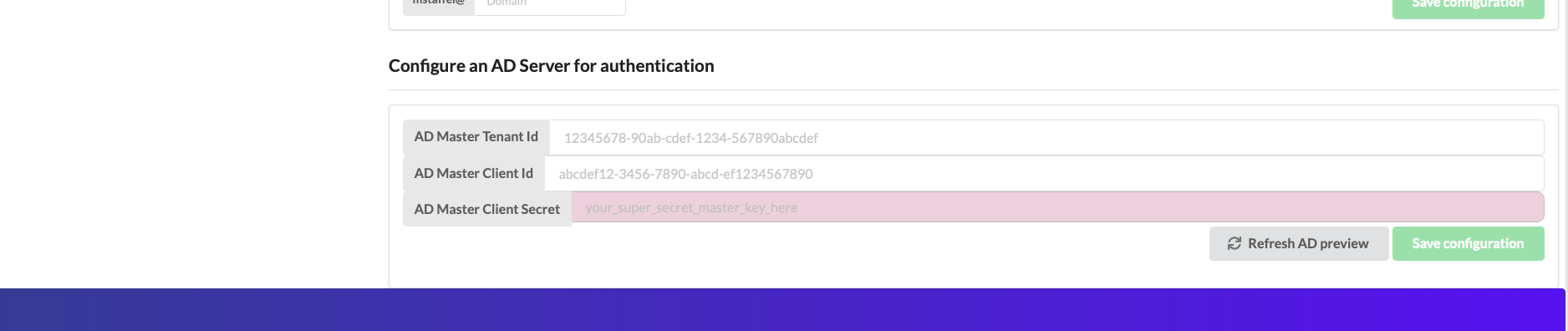
Use Refresh AD preview to check the current result before you click Save configuration.
Save the configuration.
If Production Assist shows a preview, verify that the listed users match the members of:
Azure_APP_Production-Assist
After the connection is saved, run the Azure AD sync in Production Assist or wait for the scheduled sync.
The expected result is:
In the server logs, a successful sync should look similar to:
Fetched <number> users from tenant <tenant-id>
Processed <number> users for tenant <tenant-id>
Updated tenant <production-assist-tenant-id> with <number> users
The app registration is not yet allowed to issue ID tokens for the hybrid flow used by Production Assist.
Check the following:
Entra ID > App registrations > Production-Assist > Authentication.https://www.production-assist.com/login/azure-redirect
The redirect URI sent by Production Assist does not exactly match the one in the app registration.
Pay particular attention to the scheme, host, path, and any trailing slash. For the production environment, the URI must be exactly:
https://www.production-assist.com/login/azure-redirect
The app does not have the required Microsoft Graph application permissions, or admin consent has not been granted.
Check:
User.Read.All and Group.Read.All are added as Application permissions.GroupMember.Read.All is added as an Application permission.Production Assist could not find:
Azure_APP_Production-Assist
Check:
Check:
Azure_APP_Production-Assist.Fetched users and Processed users.If the logs show users fetched but zero users processed, the Microsoft Graph response may not contain usable email information for those users.
Check:
Use an account with one of these roles:
Global Administrator
Privileged Role Administrator
Then reload the app registration and try again.
Client secrets expire. Before the secret expires: