
🇬🇧

Documentation

Glossary

Request a Verified Structural Calculation#

Use Request Verified Structural Calculation... to request a professional review of the structural calculation for the current state of an online project by Production Assist's in-house engineering office. The team supports a range of temporary structures, including truss structures and custom structures. Learn more about the service at Static Office. Before you place an order, Production Assist displays the calculated scope and current price. A displayed price does not place an order.

Requirements#

  • You are signed in to Production Assist and have access to the online project.
  • The drawing is linked to a PA Cloud project and a branch.
  • Transfer the changes to be reviewed to the branch before submitting the request. The order applies to the branch's current online state. See Transfer changes to the workspace for instructions.
  • A billing/reporting account must be available to Buy Verified Structural Calculation. Depending on your account access, you can choose your own account or an organization account.

If no online project is linked, the dialog displays No Online Project and disables Buy Verified Structural Calculation. Download Quote also requires an online project.

Both actions also require a branch linked to the online project. In the dialog, Buy Verified Structural Calculation checks only whether an online project is linked. If there is no branch, the request is not submitted and the app displays an error. Download Quote remains visible even when no project or branch is linked. If there is no branch, no quote is retrieved, even though the app may then display a success message. Link a branch before buying or requesting a quote, and check that the PDF opens when you request a quote.

Open the request from PDF export#

In the dialog for exporting a structural calculation, choose Request Verified Structural Calculation... on the right or click the green button with a shopping cart and price to open the same request. The green button shows the price currently loaded for the project. Both buttons first open the order dialog; displaying a price does not place an order. Review the scope and price there, and complete the order only in the order dialog. The same online-project and branch requirements apply as when opening the request from the menu.

Buttons for opening a verified-calculation request in the Export Structural Calculation dialog; the green button shows a shopping cart and the project price

Review the price and voucher#

  1. Open File → Request Verified Structural Calculation... or choose Request Verified Structural Calculation... in the Calculation Overview.
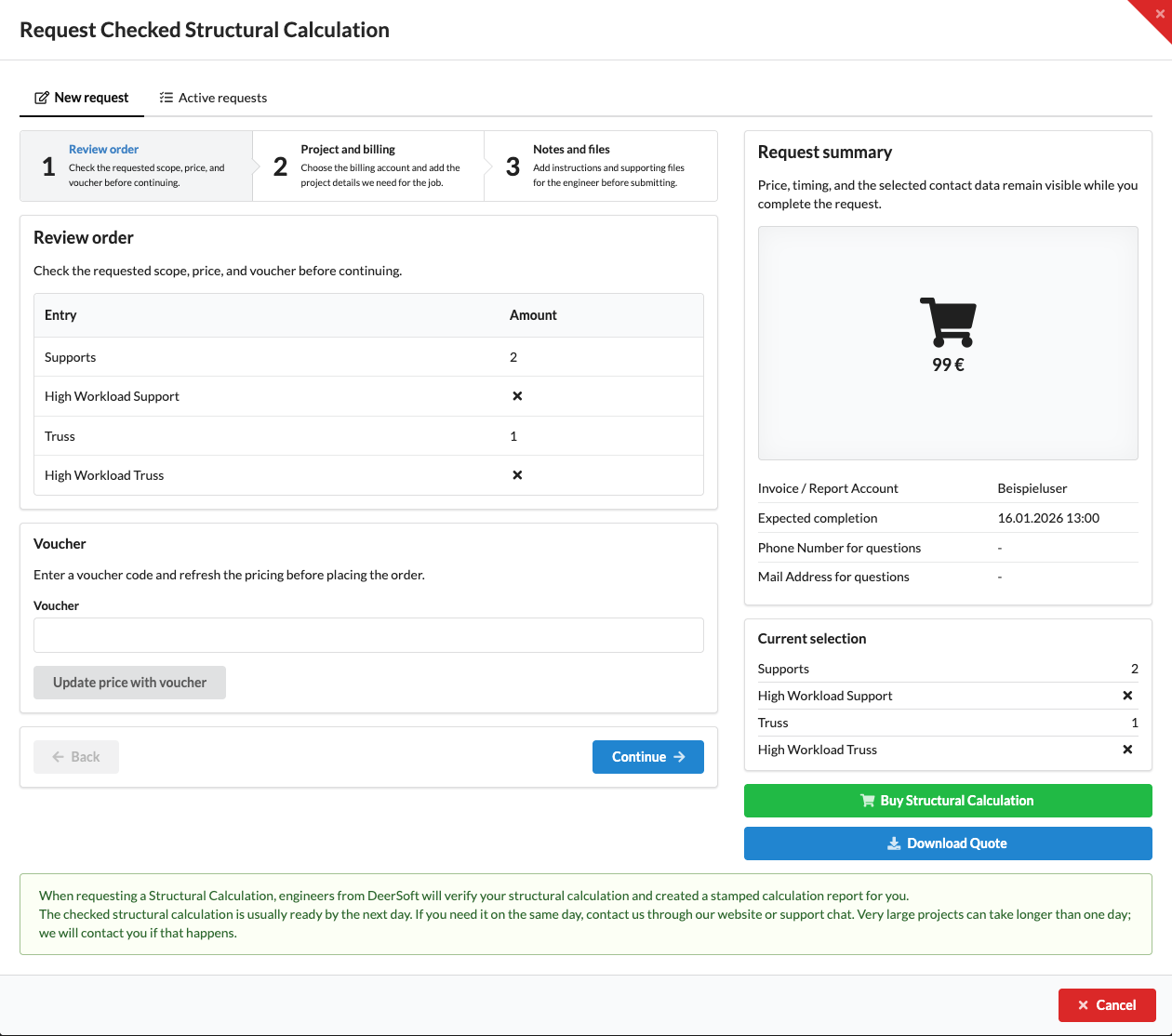
  2. Under Review order, check the Entry / Amount table and the price in the Request summary. Count Supports counts support points from drops, chain hoists, bridle legs, and ground supports. Count Cross Sections counts the different truss cross sections included. High workload support and High workload trusses indicate whether a utilization above 90% was detected in the included results; a cross means “no.” These values come from the calculation and cannot be edited at this step.

Request Verified Structural Calculation dialog at the Review Order step, showing the scope, voucher field, and request overview

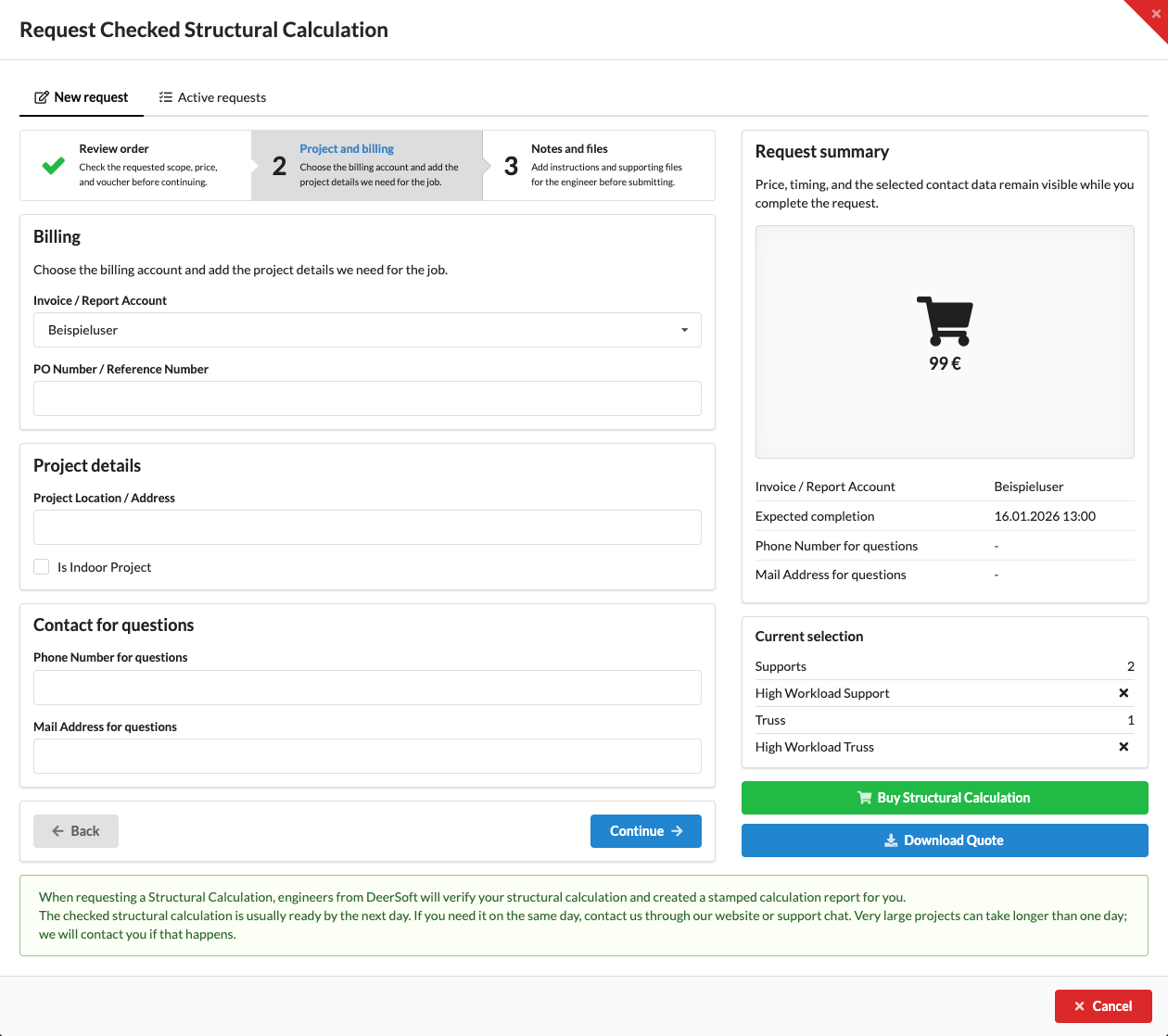
The order dialog has three steps. Open Project and billing or Notes and files directly from the step bar, or move between steps with Continue and Back. These buttons only change the displayed step; they do not submit a request. Request summary and Current selection remain visible on the right. Review the price, expected completion, billing/report account, contact details, and calculation selection there. The number of attachments is also shown once you have selected files. The order reference, project location, and additional notes are not listed there; review those details in their respective steps.

  1. If you have a voucher, enter its code under Voucher and choose Update price with voucher. The dialog indicates whether the voucher was applied or the code is invalid.
  2. Then check the updated price in the Request summary. The discount is reflected in the display only after the price has been updated.

The price depends on the detected supports, truss cross sections, and workload indicators. It may change if the project state or pricing calculation changes. If the price is rejected as outdated when you place the order, reopen the dialog and check the updated Request summary.

The verified calculation is usually ready by the next day. If you need it on the same day, contact us through our website or the Support Chat before placing the order. Very large projects may take longer than a day; we will contact you in that case. Expected completion in the request summary shows the estimate loaded for your request.
Enter project and billing details#

  1. In the order process, open the Project and billing step.
  2. Under Invoice / Report Account, select the user or organization account to be assigned the invoice and report. If only one account is available, you cannot change the selection.
  3. If needed, enter your internal order or project identifier under PO Number / Reference Number so you can identify the order later.
  4. Under Project Location / Address, enter the location where the structure will be erected. Enable Is this an Indoor Project if the structure is indoors.
  5. Enter the contact details the engineer can use to ask questions about the order under Phone Number for questions and Mail Address for questions. The account and contact details are shown in the Request summary for review.

Request Verified Structural Calculation dialog at the Project and Billing step, with billing, project, and contact fields

Add notes and attachments#

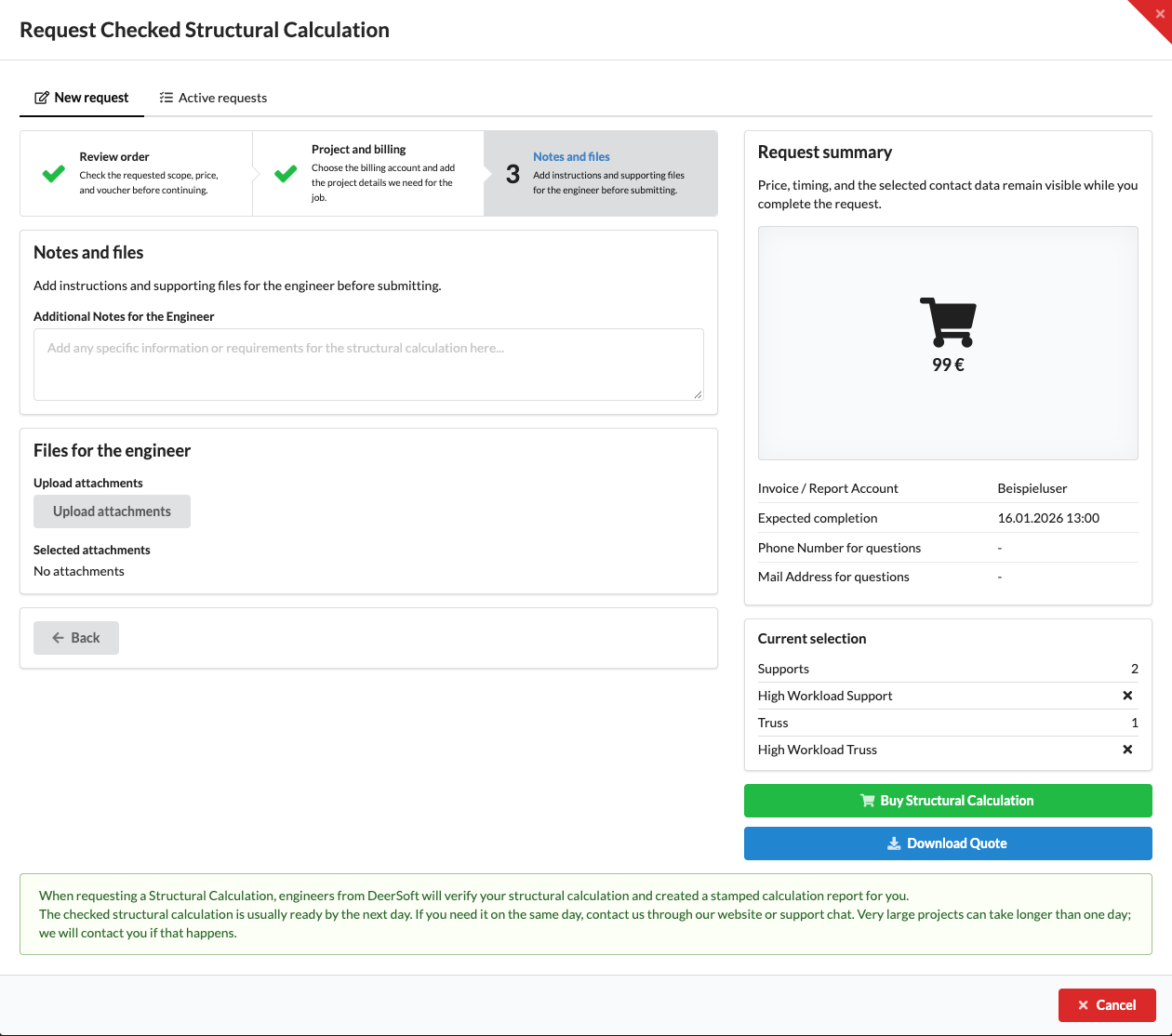
  1. Open the Notes and files step.
  2. Under Additional Notes for the Engineer, enter any special requirements or setup information relevant to the review.
  3. Choose Upload attachments to select one or more additional files. The file names appear under Selected attachments; if no files are selected, No attachments is shown.
  4. Check the file names and attachment count under Current selection. If needed, reopen earlier steps to review the price, account, project details, and contact information. The order is placed only by choosing Buy Verified Structural Calculation.

Request Verified Structural Calculation dialog at the Notes and Attachments step, with a notes field and file selection

The file dialog allows you to select multiple files. If you reopen it and confirm a new selection, that selection replaces the previous one. Canceling file selection clears the displayed selection. You cannot remove an individual file from the list with a separate remove button.

If a selected file cannot be read, an error message appears. Check that the file still exists and is readable by Production Assist, then select it again.

Submit the order or download a quote#

  • Choose Buy Verified Structural Calculation to submit the request as a paid order. The app confirms when the calculation has been submitted. We also send a receipt to the contact email you entered. If it is missing or invalid, we use the email address on your account. The receipt confirms that we received your request, says we will contact you if we have questions, and explains that our next email about the request will arrive when the report is ready.
  • Choose Download Quote if you first need a quote as a PDF. Downloading a quote does not submit a review request.
  • If the displayed price changes, review the request overview again before confirming the order.

The quote includes the voucher, order reference, billing/reporting account, and contact details. Project Location / Address, Is this an Indoor Project, Additional Notes for the Engineer, and selected attachments are not sent when downloading a quote; these details are included with the paid order.

Cancel, the red close icon, and Esc close the dialog without submitting a request. Clicking the dimmed background does not close it. The attachment selection is cleared when the dialog closes.
Track or cancel a request and download the calculation#

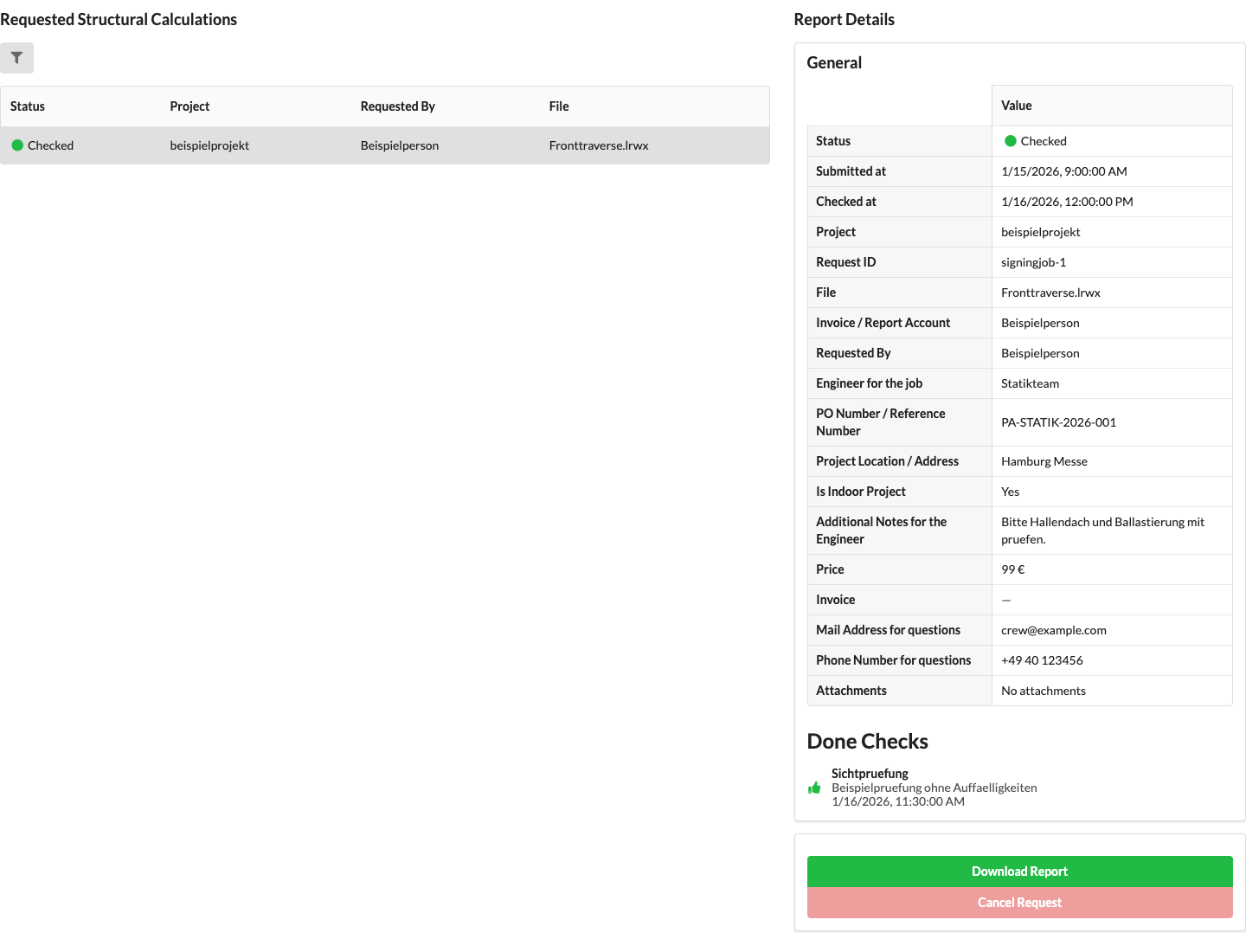
  1. In the dialog, open the Active requests tab.
  2. Select a request from the list to view its status, project details, price, contact details, and review results.
  3. Use the filter icon to show only selected statuses.
  4. For a request with New status, you can choose Cancel Structural Calculation. This button is disabled once processing has started.
  5. When the status is Reviewed, Download Report is available. The report is digitally signed and contains a QR code that opens the signed PDF.

Current Requested Structural Calculation overview with a synthetic verified request, report details, and available actions

StatusMeaning
NewThe request was submitted and processing has not started. It can be canceled.
In progressProcessing has started; cancellation is no longer available.
ReviewedThe verified calculation is ready to download.
Feedback NeededMore information is needed for the request. Review the request and its notes.
Canceled by UserThe request was canceled.

The Active Structural Calculations button opens the same request overview in a browser.