

QR codes connect an object or assembly sheet in Production Assist to its view in the online project. You can display a code on screen, print it on a label, and scan it with a Production Assist scanner. QR codes contain a project link, so the project must be saved online.
A QR code is not a separate record. It points to the online address of an object, assembly sheet, or project. Transfer changes to the online project before other people can see the latest version online.
An assembly sheet groups objects for a setup or work area. You can create one for selected objects or for an assembly group, layer, or class. You do not need a separate object for the assembly sheet itself.
The User list is not currently populated reliably. Assign drawing users in the User column after creating the sheet. For other ways to create assembly sheets and additional settings, see Assembly Sheets.
Object-information QR codes work only with an online project. Without a public share link, people who open the link need access to the project. If you select a public share link in the export dialog, anyone with the link can view the online information. For details about filters and sharing, see Exporting a Label as PDF.
In the desktop app, open the scanner with the default G key (Show QR Code Reader) or the Camera icon in the Menu Bar. The Renderer also has a Camera mode in the tool selector. On iOS and in the web app, open the scanner with the corresponding Camera button. The scanner requires an available camera and permission to access it.
The iOS Simulator does not provide a device camera. Verify scanning on a physical iPhone or iPad. A Debug build on a physical device is not restricted by an app debug setting; it still requires camera permission.
The scanner processes Production Assist links. Other QR codes, such as general website or Wi-Fi codes, are not supported by this workflow. If the scanner does not recognize a code, check camera access, lighting, and alignment, then try again.
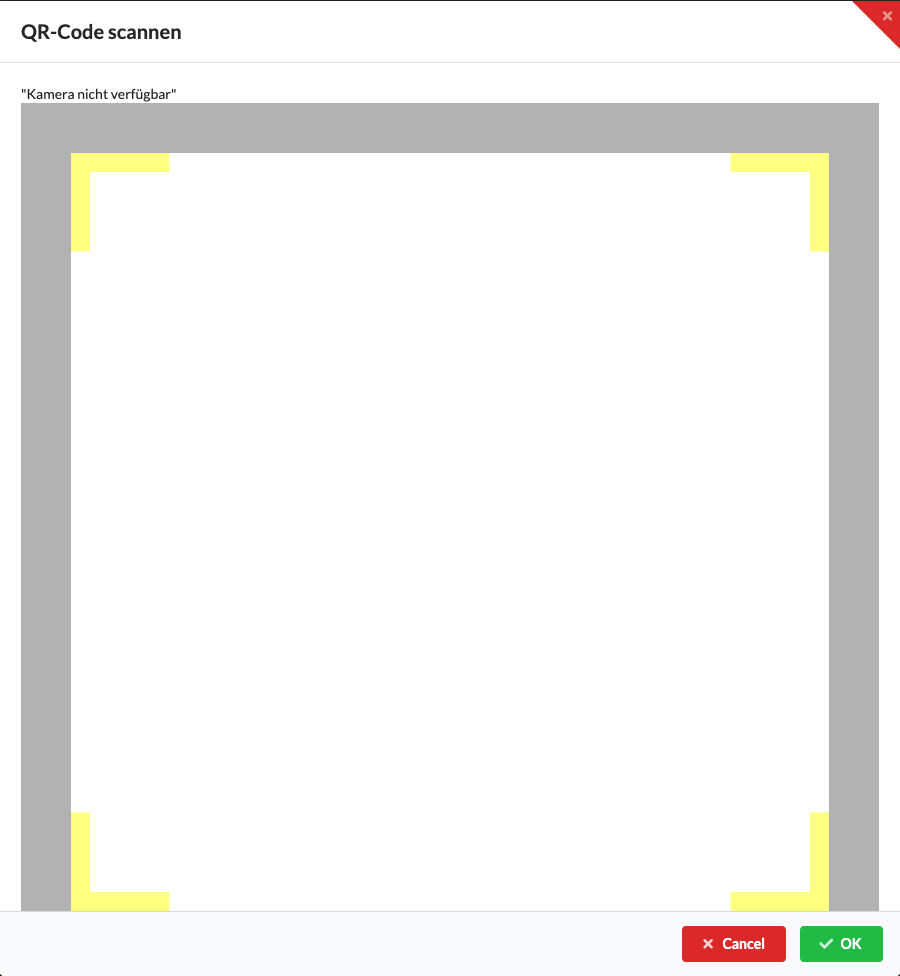
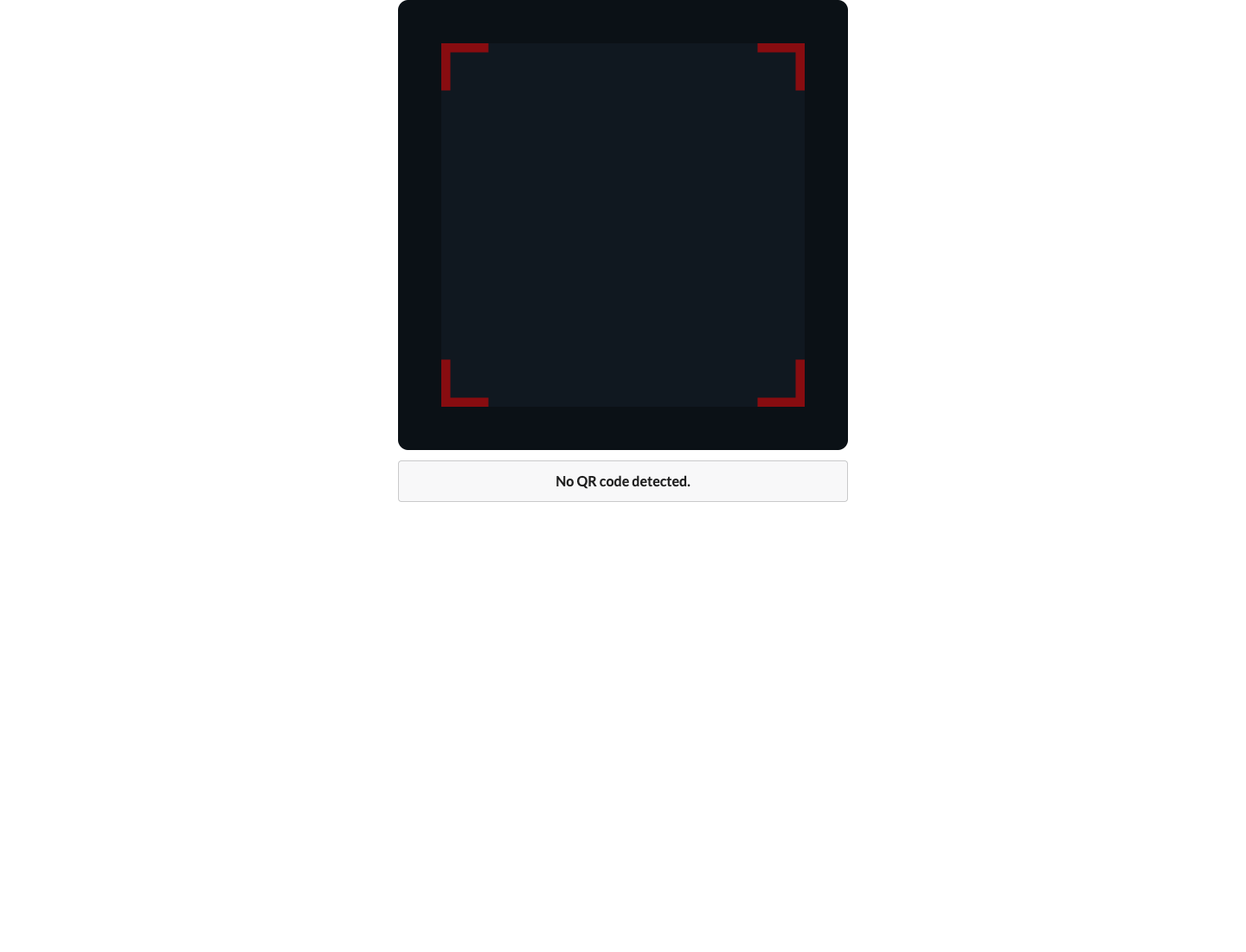
The following views show the viewfinder states: red while scanning, green after recognition, and yellow when a read error occurs. These are component captures and do not show actual project or camera data.



Scanning a code does not grant project access. Without a public share link, only people with the required project permissions can open the linked online data. With a public share link, anyone who has the link can view the shared online version. Transfer changes to the online project first so the link opens the latest project version. For more information, see the online workflow.