

The DWG Library Manager prepares DWG truss libraries for use with the DWG browser in the AutoCAD plug-in. Use it to review folders and files, assign a Production Assist cross-section, document the processing status, and copy finished files to the destination library. The manager is a desktop dialog under File → DWG Library Manager.... It is not the browser that inserts DWGs into an active drawing.
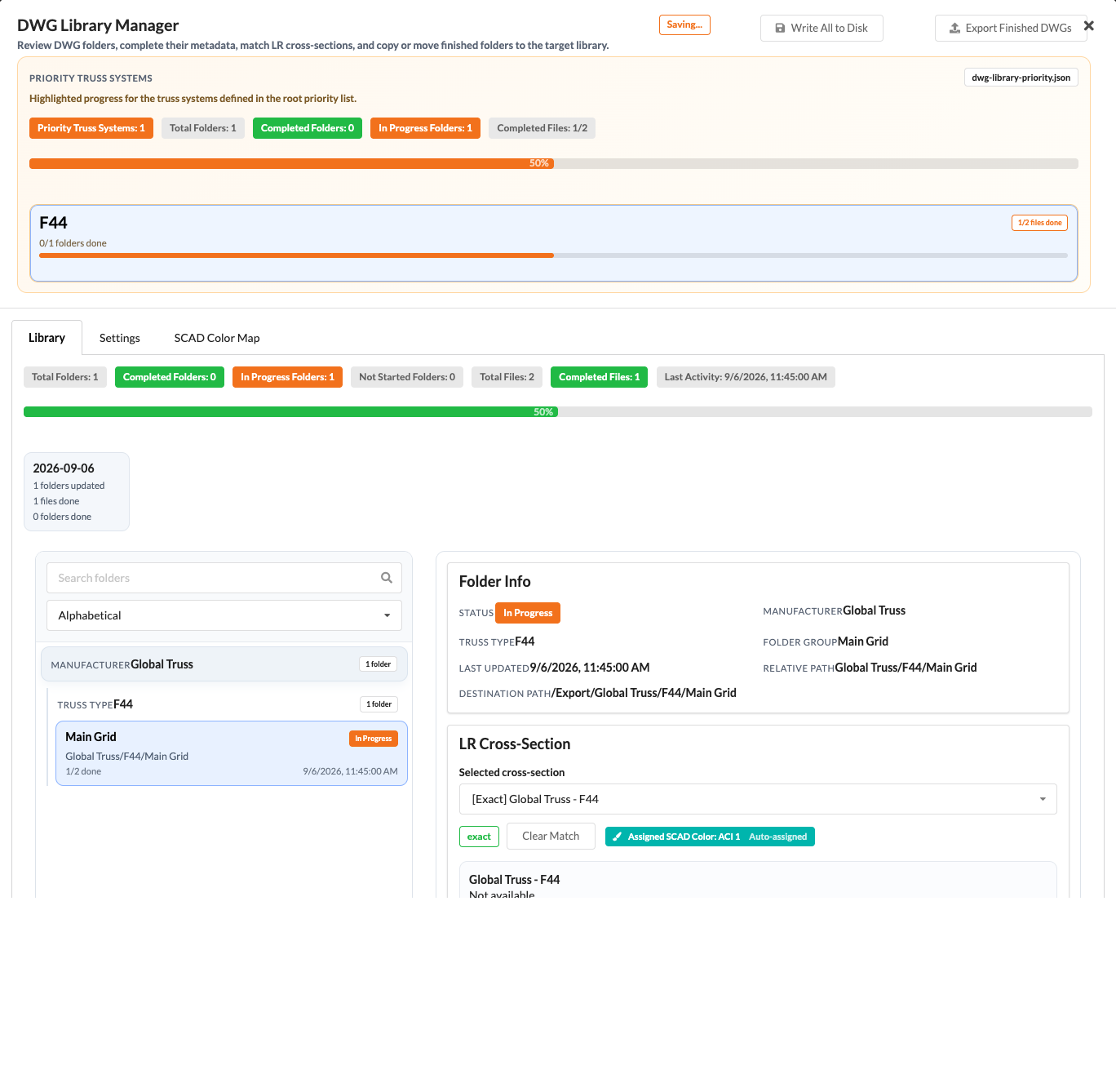
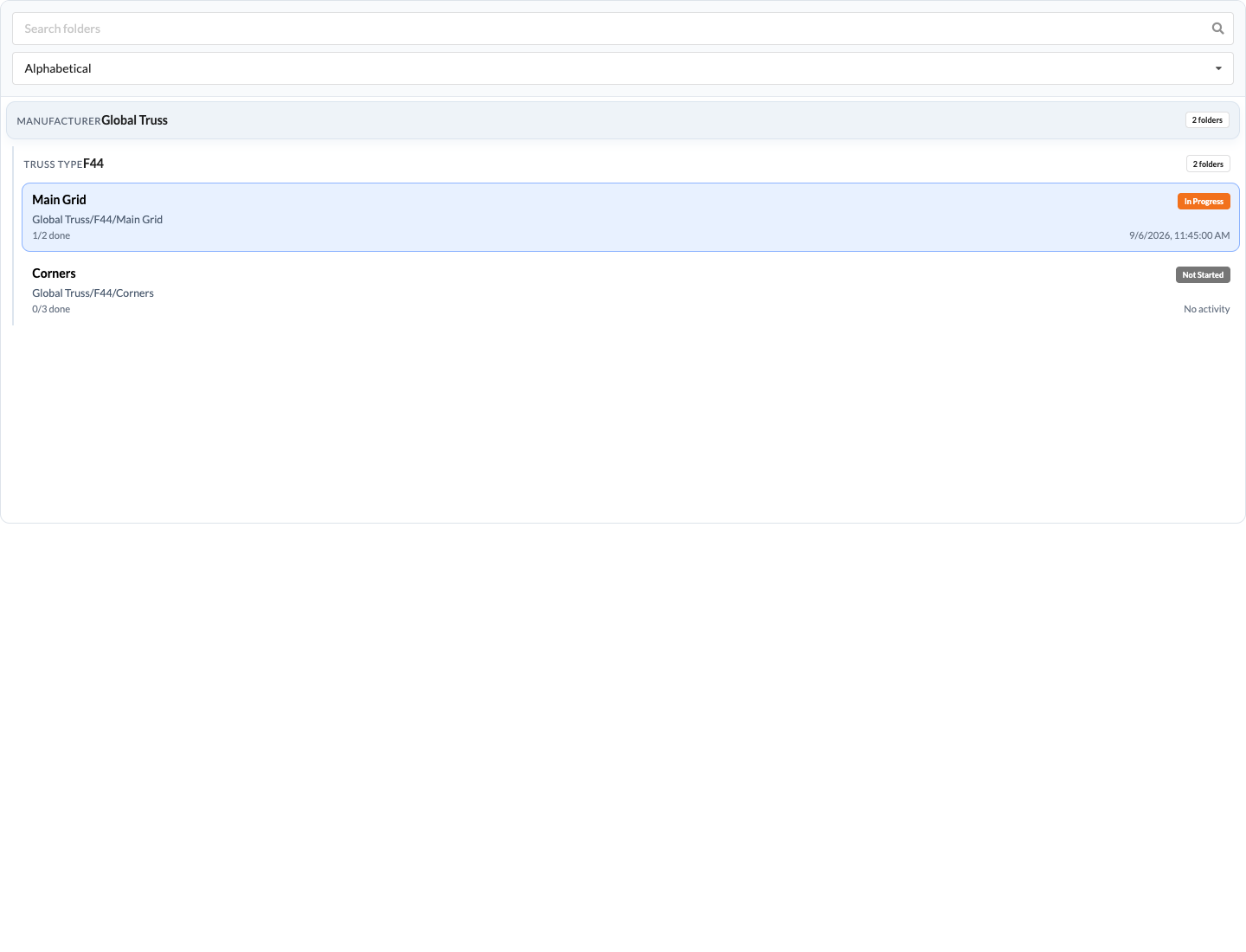
The library structure follows the subfolders under the source root. The folder list groups folders by manufacturer and truss type. Status and file counts help you find the next file to process.
Refresh reads the source folder again. The metrics and progress bar show the detected inventory and documented processing status. In the header, select Write All to Disk to save metadata and global SCAD color mappings. Export Finished DWGs copies all DWG files marked as completed to the destination library.
In the SCAD Color Map tab, you can review and copy the global color mapping for cross-sections, tube profiles, and bracing profiles. The manager also uses these mappings to determine the profile colors shown in folder details.
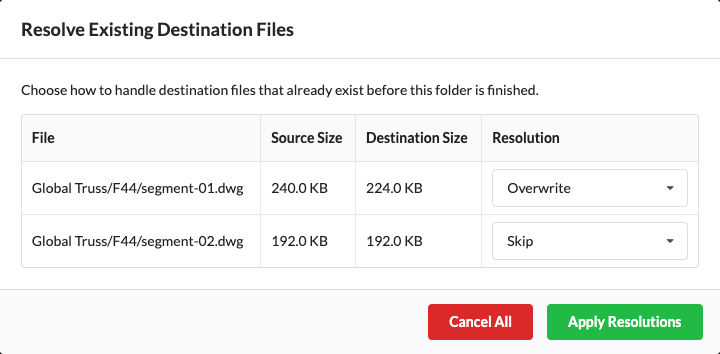
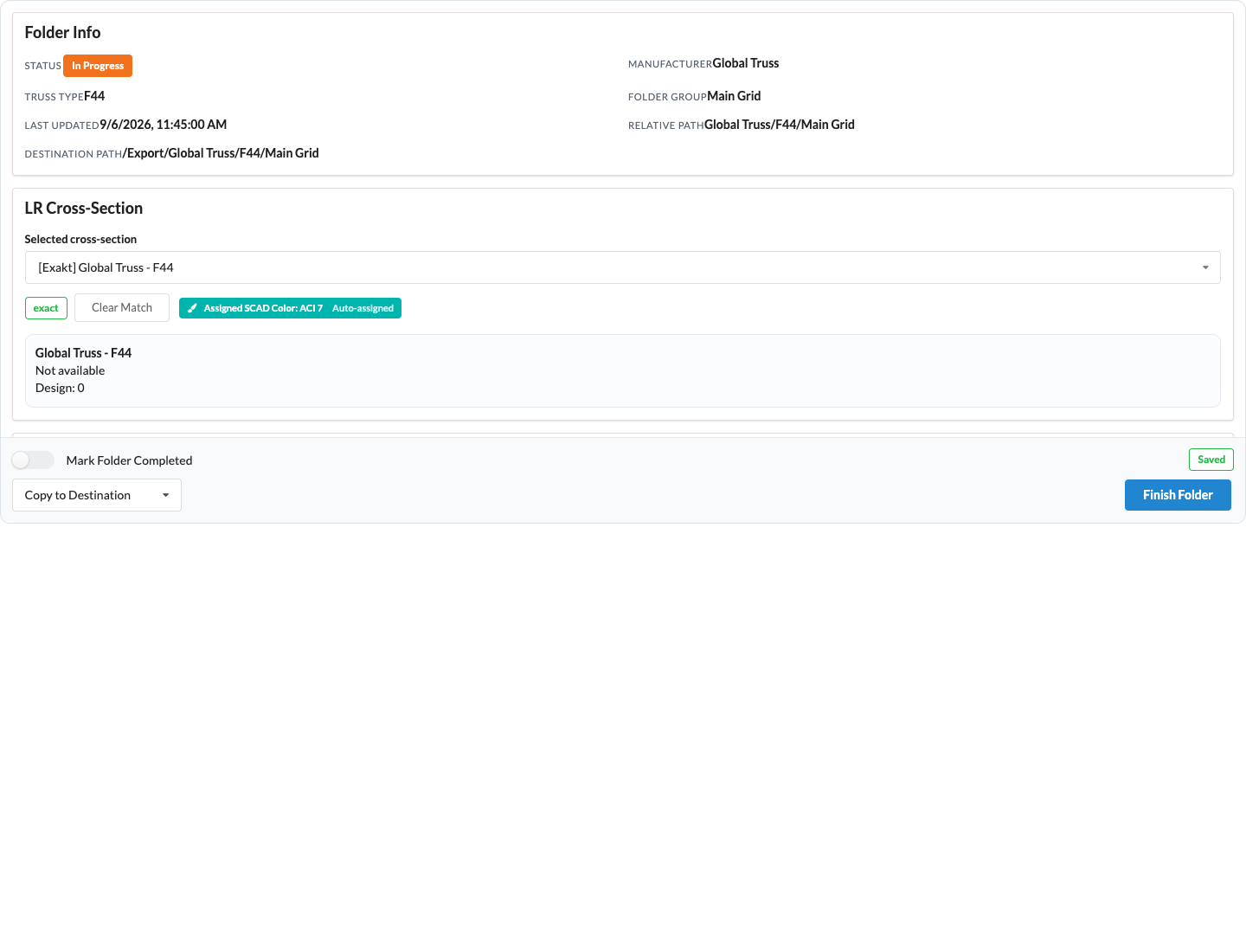
The destination library is created in the DWG/Trusses subfolder next to the source root; the folder structure is preserved. Export Finished DWGs also copies files marked as completed even if their folder has not been marked as completed. Files whose size and modification time already match are skipped; files at the destination that differ are replaced.
The DWG Library Manager organizes and transfers files. To insert a library DWG into an active AutoCAD drawing, open the DWG browser using Browse Library or the PALibrary command. There, select the library folder, find a file, and click or double-click its block entry, depending on Insert with double click, to insert the block. For library files and saved Favorites, the AutoCAD browser requires a configured library path; use Install Library or Check Library to set it. If the detected destination folder is not automatically selected as the AutoCAD library, set the browser path to that folder. The Current Drawing group also shows the active drawing's block definitions and works without a library path. Favorites are saved in favorites.json in the library folder. When reopened, the browser restores the selected group, expanded folders, search text, and window view. Block names are displayed in the selected PA language and wrap fully; DWG filenames remain unchanged. The DWG browser guide also describes magnet placement with automatic magnet alignment, the direct F9 (decrease) and F10 (increase) function keys (with Fn/Globe on MacBook keyboards depending on the macOS function-key setting), and the optional Rotation, Add, Subtract, and Increment controls.
The Insert with double click and Hide after insertion options in the native Library window and in PA Settings are saved application-wide. Both are enabled by default. Disable the second option to be able to select another block while inserting.
The native browser also provides a right-click menu for opening a drawing or its folder and replacing one or all instances of a selected block in the active drawing. See context menu and block replacement.
If a file is missing from the AutoCAD browser, check whether it was copied to the destination library and whether the browser points to that library folder. Reopen the browser so it refreshes the file list.