

Once you log in to Production Assist via the start page - www.production-assist.com - you will find the link to "downloads" at the bottom of the page.

Here you can download the installation file for your operating system. Windows , macOS and Linux are supported. You can also download Production Assist as a desktop app or as a Vectorworks plugin .
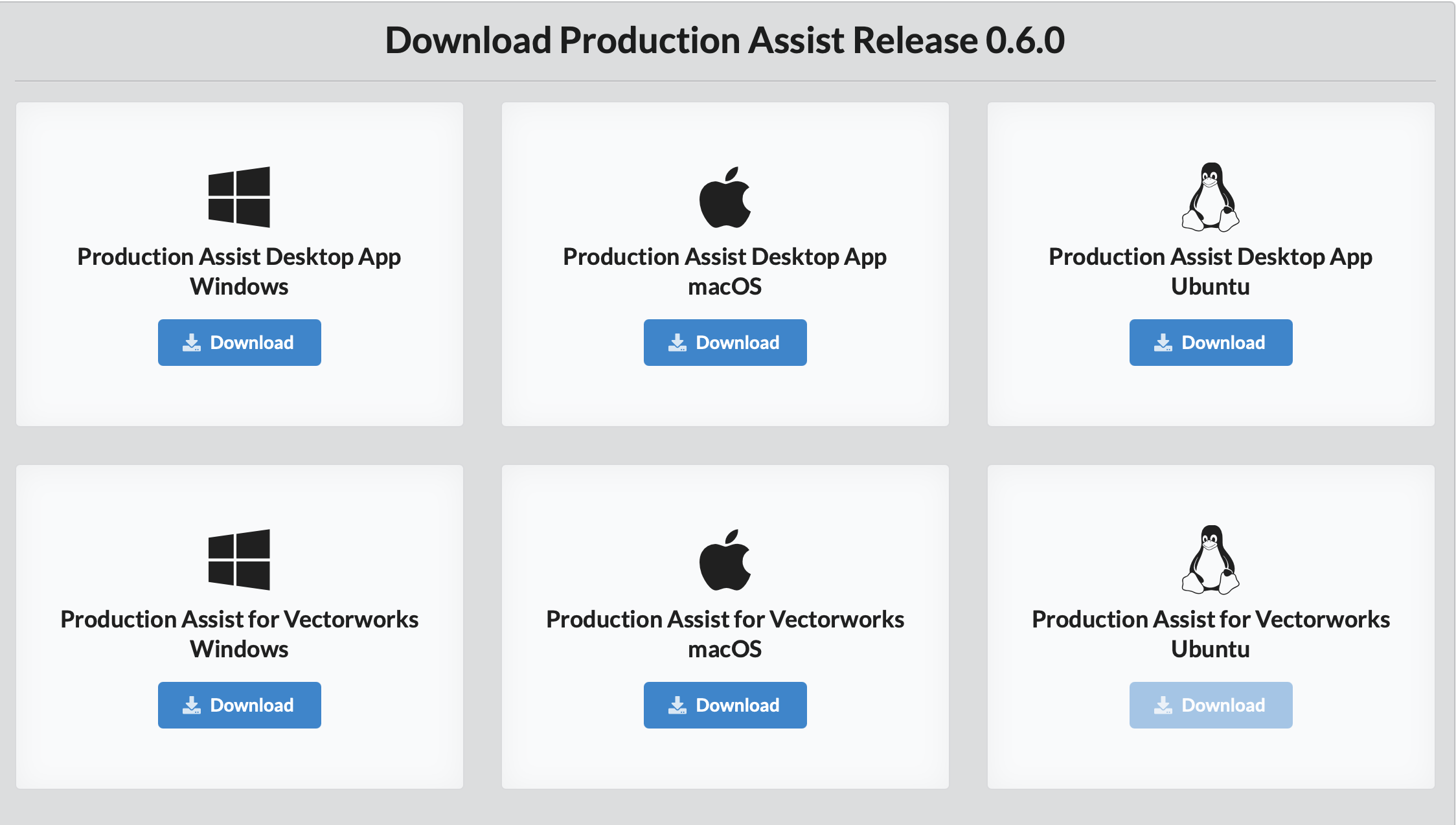
On Windows, you can choose between the installed and portable desktop app.
On the download page, select Desktop App and download the EXE file. It is saved automatically in your Downloads folder. Double-click the file to start the installation. During installation, you can select the installation folder.
After installation, you can start Production Assist from the Windows Start menu. The program files are located in the folder you selected during installation.
By default, the installed desktop app stores its user data in %APPDATA%\ProductionAssist.
The portable desktop app is available only for Windows. It does not require installation and can be started, for example, from a USB drive or a custom program folder.
ProductionAssist-VERSION-portable.exe in a folder where you have write permission.On first launch, the ProductionAssist-data folder is created automatically next to the EXE file. This keeps the user data of the installed and portable desktop apps separate. The portable folder structure includes the following:
ProductionAssist-VERSION-portable.exe
ProductionAssist-data/
├── session/          session and browser data
├── logs/             log files
├── local-resources/  local resources
├── temp/             temporary files
├── mesh/             temporary geometry data
└── Resource/         cached resources
Important: Always move or back up the EXE file together with the
ProductionAssist-datafolder. If Production Assist cannot create folders or files in this location, the portable app will not start; it does not fall back to the normal AppData directory.
The following special conditions apply to the portable desktop app:
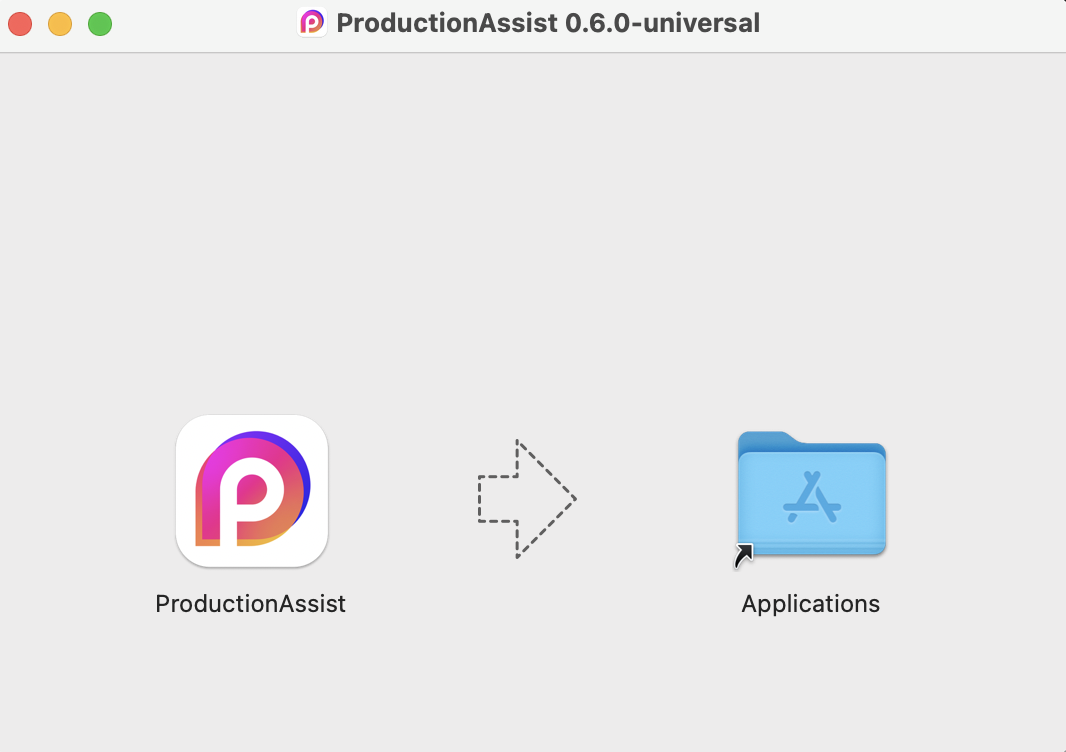
ProductionAssist-data folder is retained.productionassist: URL protocol is not registered in Windows.ProductionAssist-data folder. See Configure the plug-in AppData directory.Download the DMG file. This is automatically stored in your download folder. Double-click it to run the set-up file. A window opens in which the file is unpacked. Drag and drop the program icon onto the Applications folder. Now you can open Production Assist.
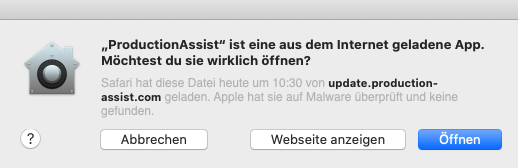
ATTENTION NOTE: Another window will open and inform you that the program "Production Assist" is an app downloaded from the Internet and will ask you whether the app should be opened. Click on "Open" here. The program will then start.
We offer an Appimage package for installing Production Assist on your preferred Linux distribution. We test our version on the latest Ubuntu LTS version and on Manjaro. The appimage can be installed in two ways:
(See also the relevant documentation )
The AppImage Launcher integrates Production Assist directly into the programs at the first start.
To install on Ubuntu:
sudo apt install software-properties-common
sudo add-apt-repository ppa:appimagelauncher-team/stable
sudo apt update
sudo apt install appimagelauncher
Oder unter Arch:
sudo pacman -S appimagelauncher
Or under Manjaro:
sudo pamac install appimagelauncher
After that, the downloaded Production Assist file can be easily opened and installed.
Alternatively, Production Assist can also only be executed. To do this, the file must first have the appropriate authorization. Right click on Production Assist -> Properties -> Permissions and check the Run box:
On KDE (Manjaro) this corresponds to Properties -> Permissions -> Executable
Installing the plug-in always requires the installed or portable desktop app to be present and to have been run at least once. When using the portable desktop app, you must also configure the plug-in's AppData directory.
There are two ways to install the plugin: Using the Production Assist app or manually.
For both variants it is necessary to find the Vectorworks installation:
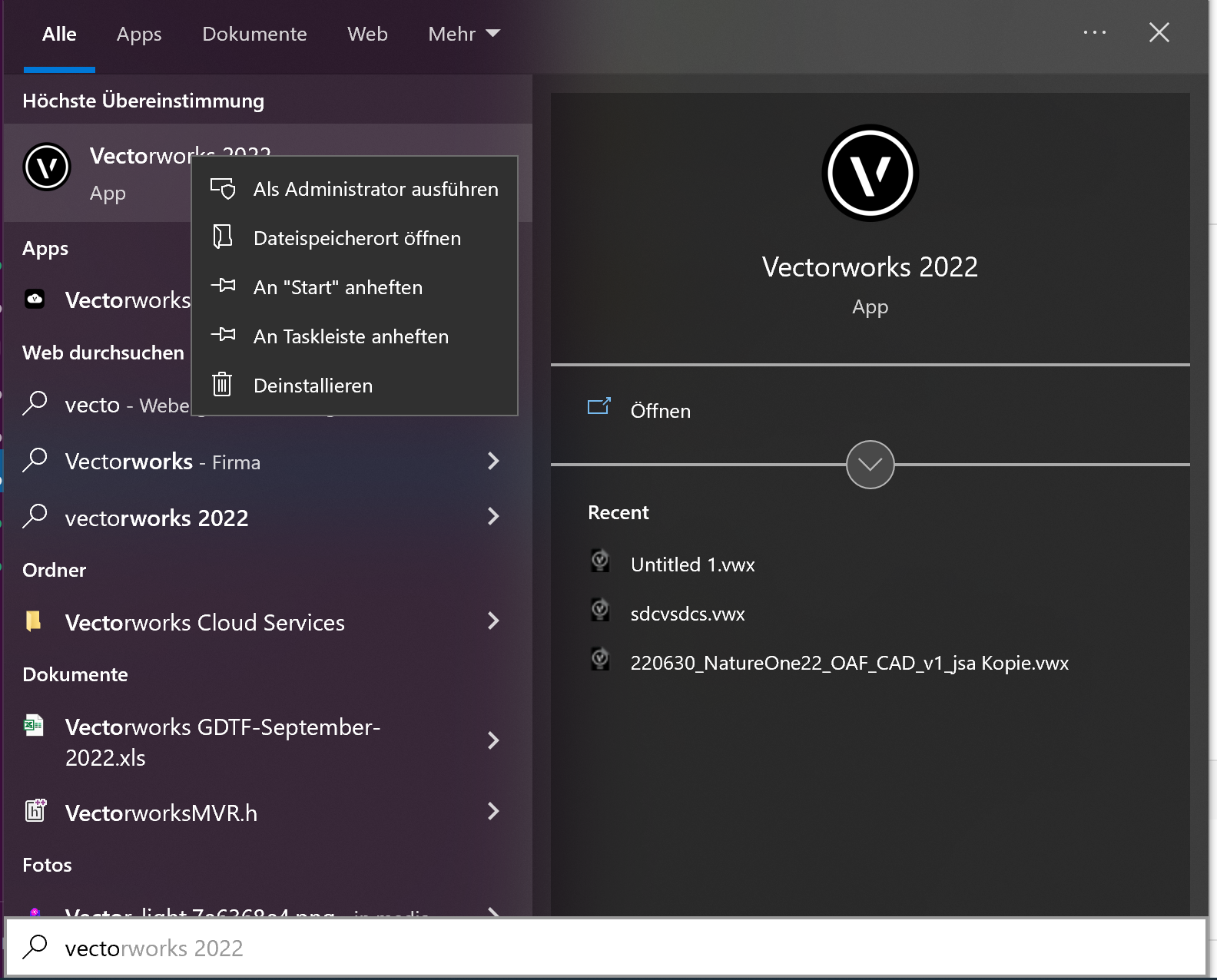
If you do not know your storage location under Windows:
- click on the Windows icon
- Search for Vectorworks
- Right click on your Vectorworks version, then open file location
- Right-click on the opened shortcut, then open file path
Download the ZIP file for Windows. This will be automatically stored in your download folder. Unzip this file.
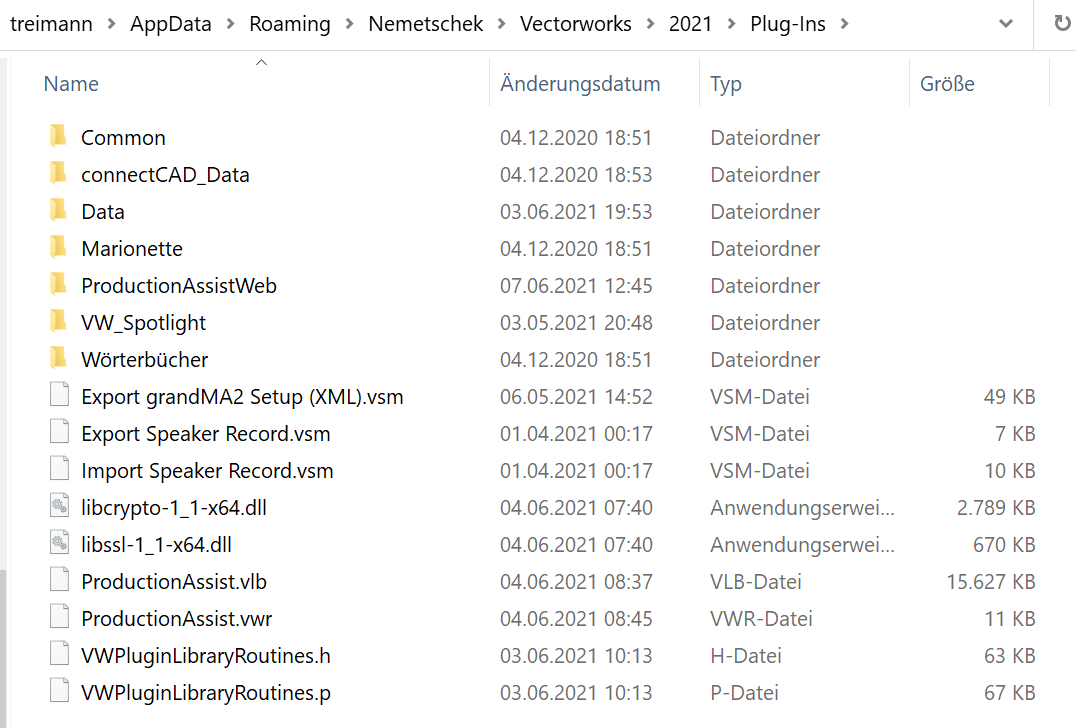
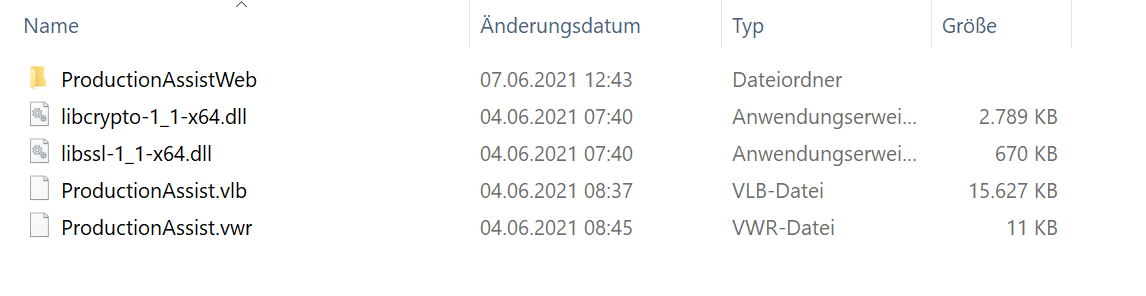
Copy the ProductionAssistWeb folder and the contents of the desired Vectorworks version to the Plug-Ins folder. This is located in the same folder as Vectorworks itself
Now you can start Vectorworks.
Download the ZIP file for MacOS. This is automatically stored in your download folder.
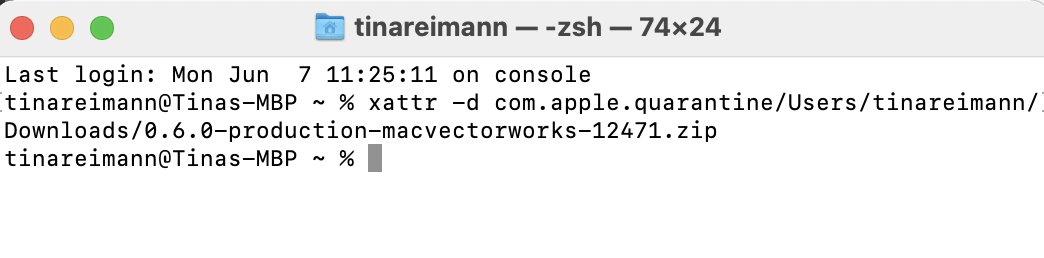
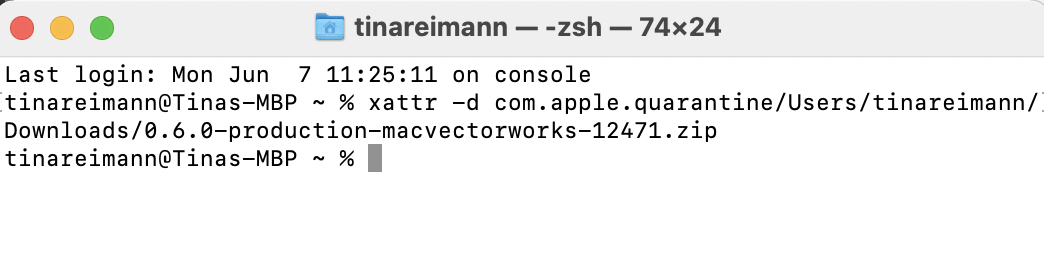
ATTENTION: Apple flags downloads that do not come from its App Store with a quarantine flag. This must be temporarily removed manually. To do this, please open the terminal program on your Mac and enter the following: "xattr -d com.apple.quarantine" and then a space. Then drag and drop the downloaded zip file into the terminal and then click Enter.
Now click on the ZIP file in the download folder by double-clicking to unzip the file. Now select the folder with your installed Vectorworks program files and copy the file ProductionAssist.vwlibrary.

Go to your Vectorworks home folder, which is located in the directory path /Library/Application Support/Vectorworks. Select your Vectorworks version and paste the ProductionAssist.vwlibrary file into the Plug-Ins folder.
Now you can start Vectorworks.
The native Production Assist plug-ins for Vectorworks, AutoCAD, BricsCAD, and ZWCAD, as well as SDK integrations, store settings, login data, resources, and the production_assist_config.json file created by the desktop app in the following directory by default:
| Operating system | Default plug-in directory |
|---|---|
| Windows | %APPDATA%\productionassist |
| macOS | ~/Library/Application Support/productionassist |
On Windows and macOS, you can specify a different AppData directory for each plug-in module. This is especially useful for the portable desktop app, separate work environments, or multiple independently configured plug-in installations. This configuration does not apply to the SketchUp and grandMA3 plug-ins.
Create a UTF-8-encoded JSON file named exactly productionassist-plugin.json next to the loaded plug-in module or plug-in bundle, depending on the plug-in type. The plug-in reads the file when it starts.
Typical locations are:
ProductionAssist.vlb, ProductionAssist.arx, libProductionAssistBRXYY.brx, or ProductionAssistZRX.zrx.libProductionAssistBRXYY.mrx.productionassist-plugin.json next to ProductionAssist.vwlibrary or ProductionAssist.bundle, not inside the bundle under Contents/MacOS.Note for macOS: Because the configuration file is outside the plug-in bundle, you can add or change it without modifying the bundle's code signature. For compatibility, the previous location under
Contents/MacOSis still used when there is no configuration file next to the bundle.
Currently, you can define exactly the following override:
| Key | Type | Effect |
|---|---|---|
appDataFolder | String | Sets the AppData directory for this plug-in. Relative paths are resolved below the operating system's general AppData directory; absolute paths are used unchanged. |
Other keys are ignored. The configuration file affects only the plug-in's product-specific AppData directory. It does not change the operating system's general AppData root directory or the desktop app's Downloads, program, or home directory.
A relative path creates a separate directory within the general AppData directory:
{
  "appDataFolder": "productionassist-vectorworks-2026"
}
The example resolves to:
%APPDATA%\productionassist-vectorworks-2026~/Library/Application Support/productionassist-vectorworks-2026On Windows, absolute paths with drive letters and UNC network paths are supported. Forward slashes avoid the need to escape backslashes in JSON:
{
  "appDataFolder": "D:/ProductionAssist/Data"
}
{
  "appDataFolder": "//FileServer/ProductionAssist/Data"
}
On macOS, an absolute path begins with /:
{
  "appDataFolder": "/Volumes/ProductionAssist/Data"
}
To use a plug-in with the portable Windows app, enter the full path to its data folder:
{
  "appDataFolder": "D:/Programs/ProductionAssist/ProductionAssist-data"
}
First start the portable desktop app at least once. Then close the desktop app and the CAD application, and place the configuration file next to each plug-in module you use. After the next start, the plug-in uses the production_assist_config.json file from this folder, among other data.
The plug-in uses its default directory if:
productionassist-plugin.json is missing or is not a valid JSON object,appDataFolder is missing or is not a string,appDataFolder is empty or contains only spaces.Environment variables such as %APPDATA% and shortcuts such as ~ are not resolved in the value. Use either a relative path or a fully absolute path. The target directory must be writable by the signed-in user. When changing the directory, existing data is not moved automatically. If necessary, copy it manually to the new directory while the desktop app and CAD application are closed.
We are sorry that you want to leave us. If you encounter any problems, you can always contact us here .
Delete the ProductionAssist.vwlibrary file from the Library/Application Support/Vectorworks folder.
Locate your Vectorworks version as described above and delete the following files from the Plugins folder