

Production Assist can send object positions over PosiStageNet (PSN) or use positions from an existing PSN data stream. Use the server when a lighting console or another PSN device should receive positions from Production Assist. Use the client when Production Assist should move and rotate objects based on an existing PSN data stream.
PSN uses network packets. The sender, receiver, and network must be reachable for the PSN connection to work, and the network must allow multicast traffic.
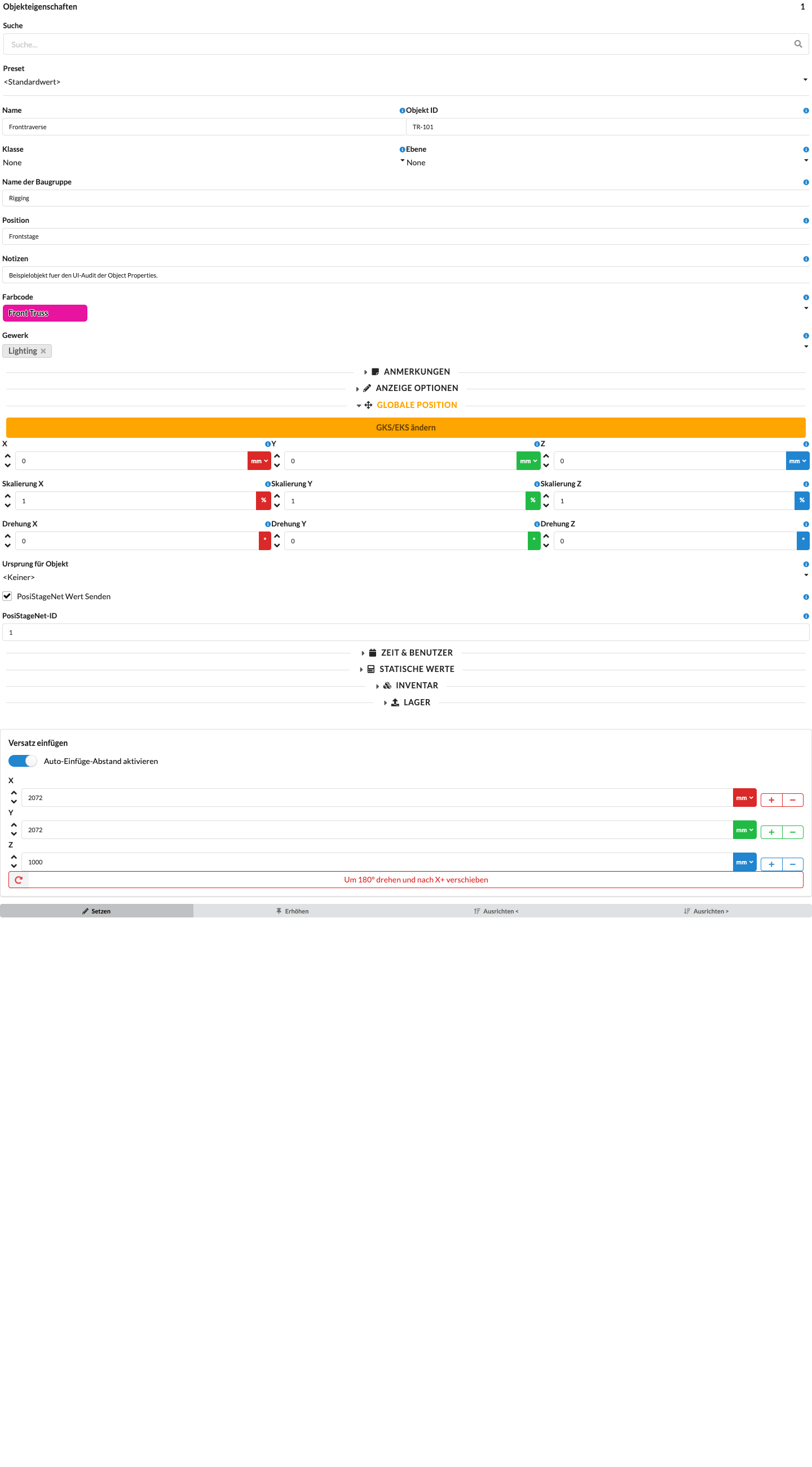
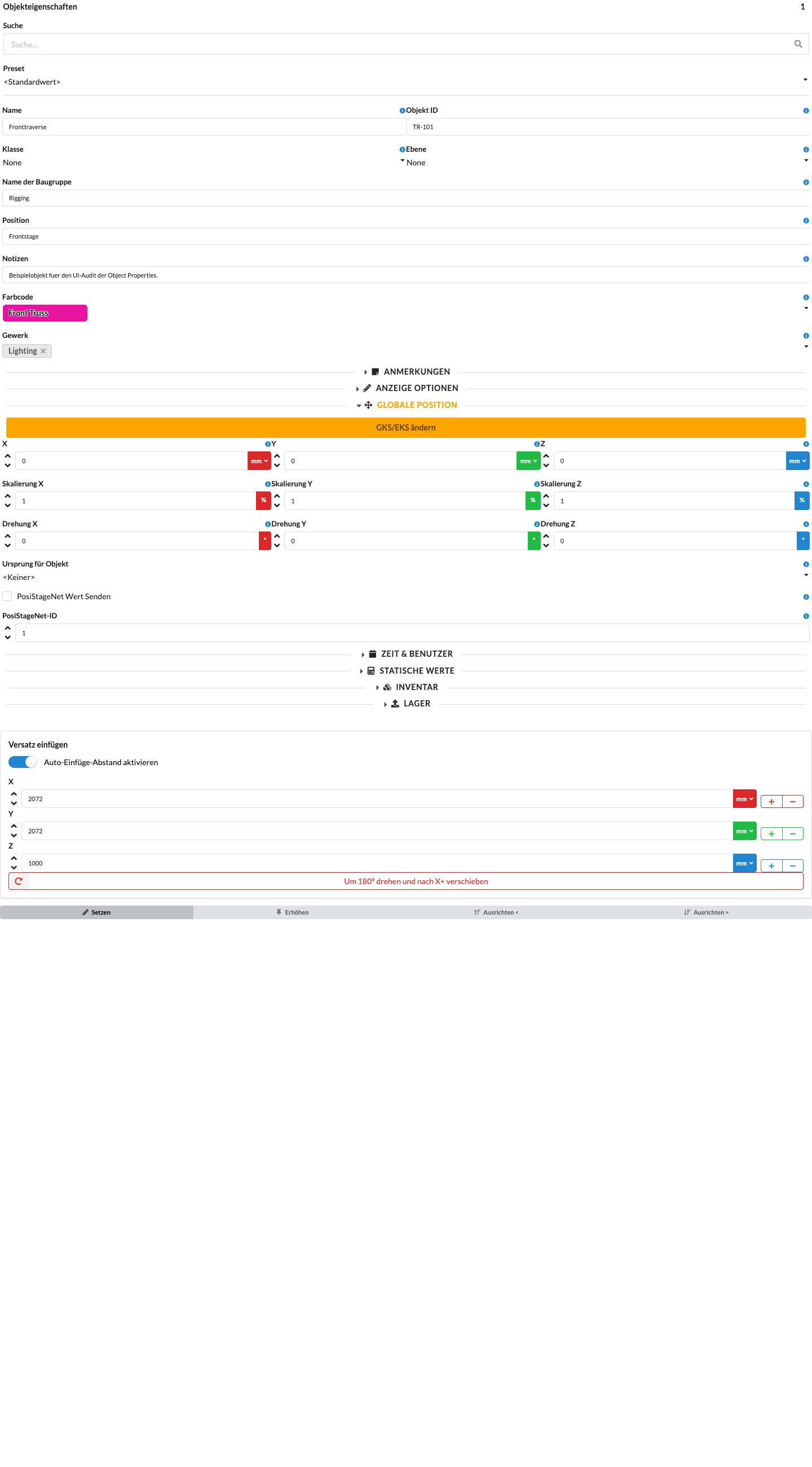
The PSN properties are in Object Properties → Transform. The following examples show the settings for a sender and a receiver.
Production Assist needs access to the local network for PSN. Connect the iPhone or iPad to the same reachable local network as the PSN endpoint, for example over Wi-Fi. A cellular connection alone does not connect the device to PSN devices on the local network.
When the server starts, Production Assist assigns sequential PosiStageNet IDs to the enabled objects. The IDs are reassigned at the next start based on the objects enabled at that time. Start the server only after you have selected the objects to send.
For multiple sender objects, numbering starts at 1 and follows the objects' order in the drawing. If the selection or order changes, the automatically assigned IDs may change.
The client uses data only for objects with PosiStageNet Send Value disabled and a positive PosiStageNet ID. If an object does not move, first check these two properties, then check the network connection and tracker ID.
The server and client can run at the same time in one drawing if you use different objects for sending and receiving. When the server starts, it reassigns the IDs of sender objects; a manually entered ID on a receiver object remains unchanged.
Click the green PSN icon in the footer again to stop the running server or client for the drawing. The server and client have separate controls.

While the server or client is active, the adjacent history icon opens the 30 most recent values sent or received. You can also open the history view with Enter or the Space key. The server and client have separate histories and connection logs.
The table shows the time, tracker ID, position (X, Y, Z), and rotation around the X, Y, and Z axes in radians. The connection log records events such as the server starting or the first tracker value arriving. Histories and logs belong to the current drawing and are not saved when it is closed.
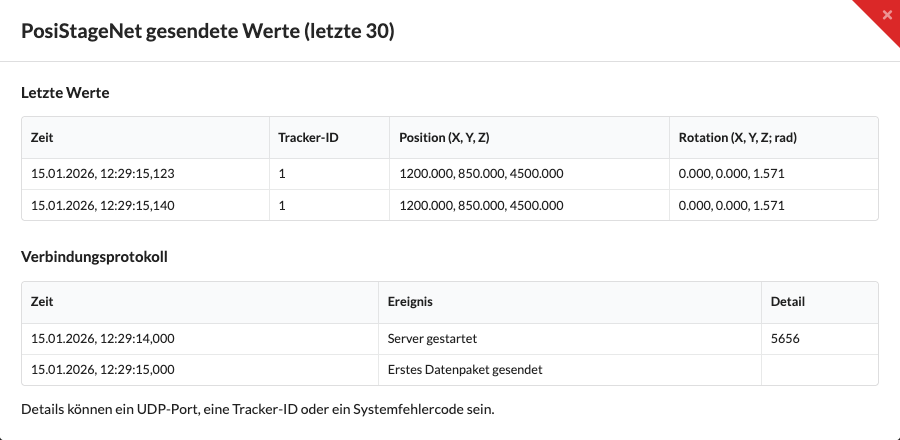
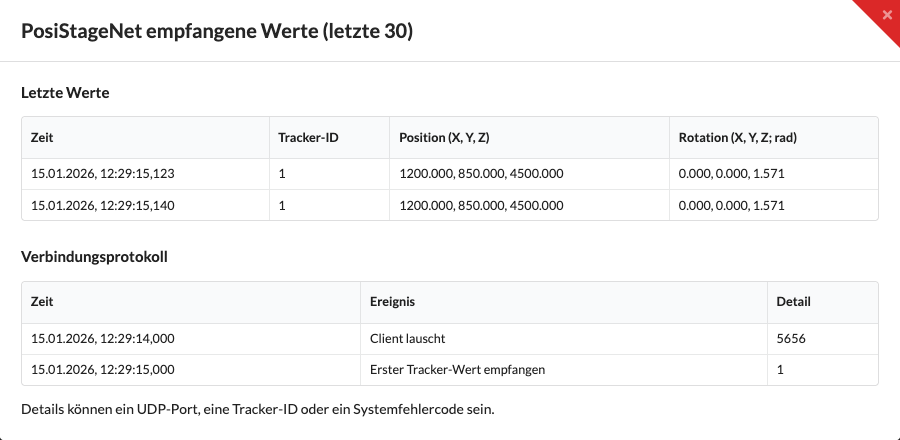
If the client history shows values with the matching ID but the target object does not move, check that PosiStageNet Send Value is disabled on the target object. If no values appear, first check the client log for errors opening the UDP port or joining the multicast group. Then check that both applications are on the same network and that the server log reports sent data.
System error 65 on iOS and iPadOS means that the network destination is unreachable. First check access to the local network as described in Prepare PSN on iPhone and iPad. Then check whether the device is connected to the correct local network and whether that network allows multicast traffic. The green server icon indicates that the sender is on; only values shown as sent in the history confirm successful output.
If the error persists despite network access being allowed, the installed app version may be missing the required multicast entitlement. This entitlement must be included in the signed app build and cannot be added in the device settings. Install an appropriately updated app version or contact support with the connection log.
The two fields and their descriptions are in Transform in Object Properties. The sender assigns IDs automatically at startup; when receiving, you set the ID on the target object.