

Pro Team licenses enable other users to access Pro Team functions without their own subscription. As a rule, a company account should be created as an organization for each company, and the employees should be invited to this account as collaborators .
In all projects in which the user has access rights, he can use the Pro Teams functions. If the user should also be able to create his own projects, the PA Team user himself must change his account type to "Organization". The user can now create a new drawing, transfer it to the cloud and then use the Pro Teams functions.
To do this, the following steps must be taken:
| Step | Description | Image |
|---|---|---|
| 1 | Open the User Settings on the Production Assist website and select the Account & Billing tab | 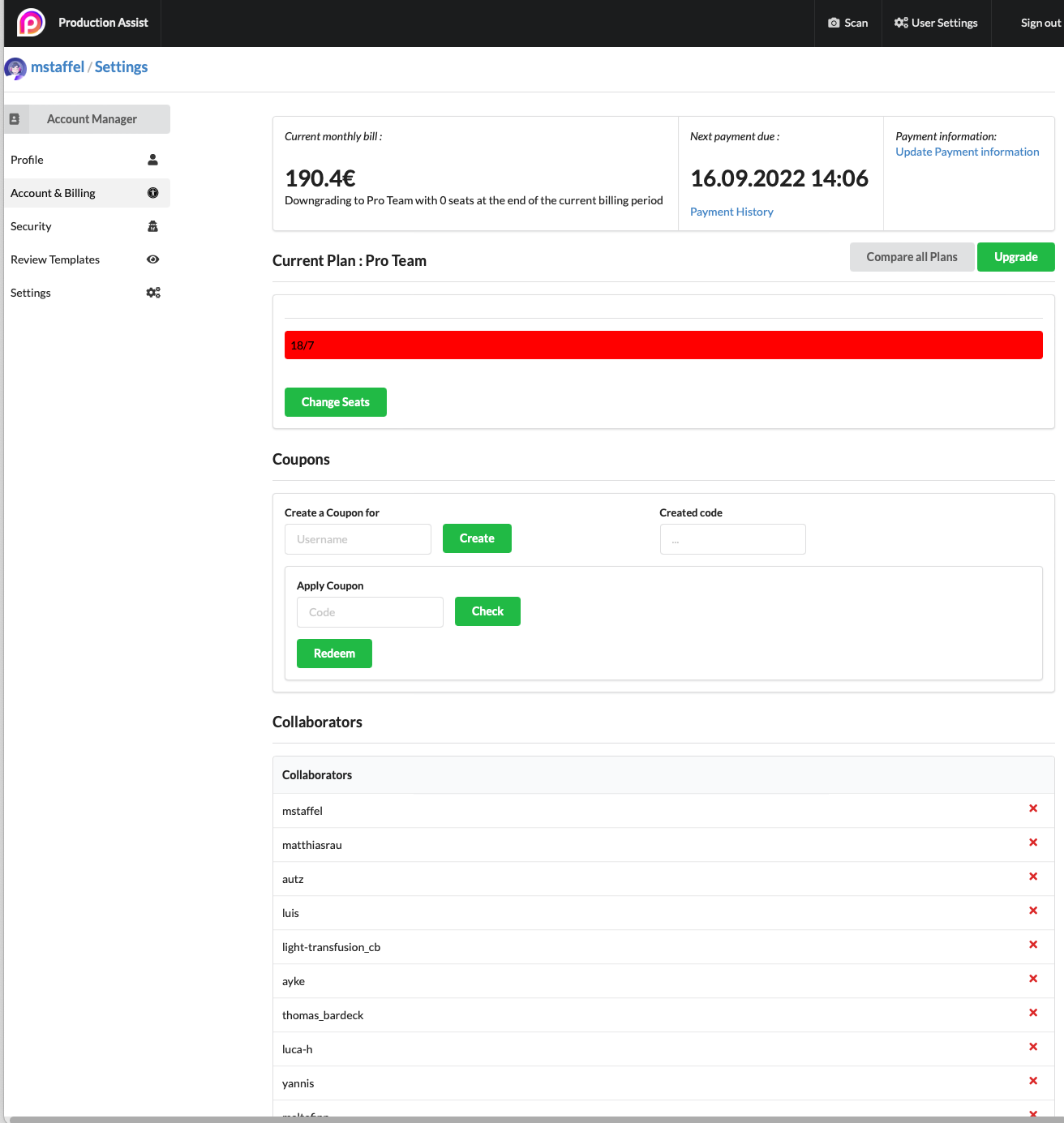 |
| 2 | Scroll to the Collaborators section and click Add User | 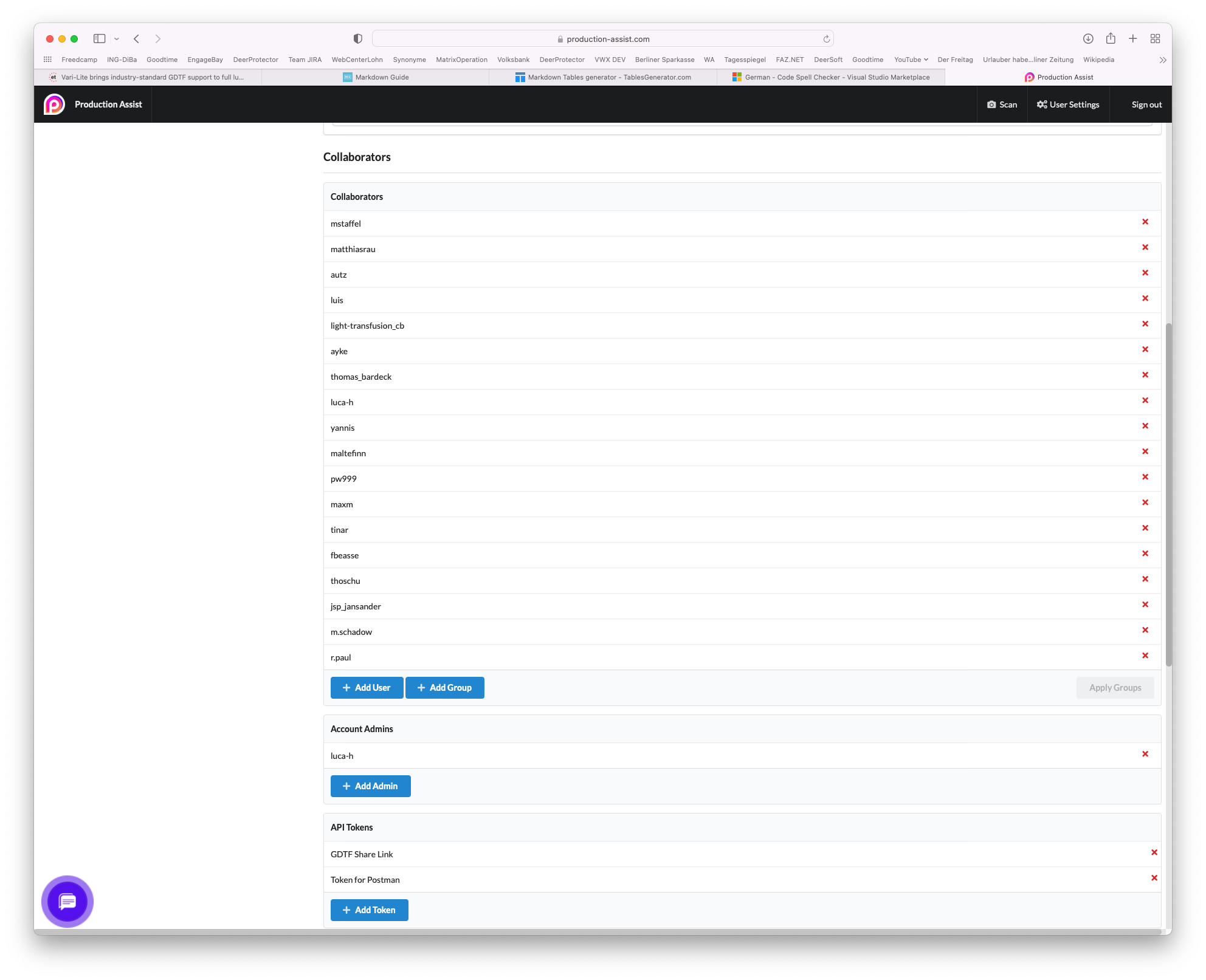 |
| 3 | You can search for your colleague's username. You must enter at least three letters for the search to work. Click on the user to add them as a collaborator. | 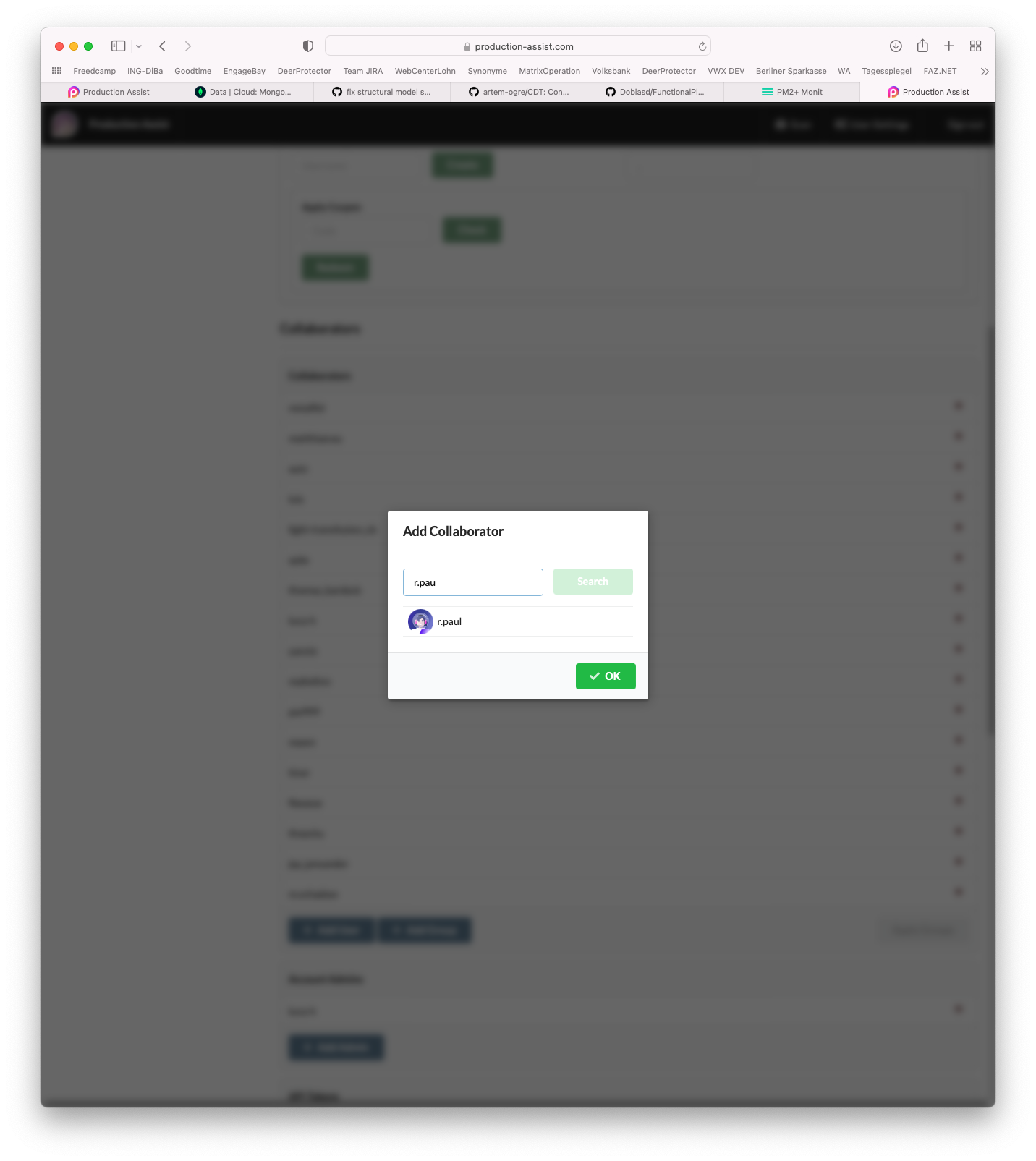 |
| 4 | Now open the project in which your colleague should work. Click on Settings and open the Access tab. Click the Add Member button. | 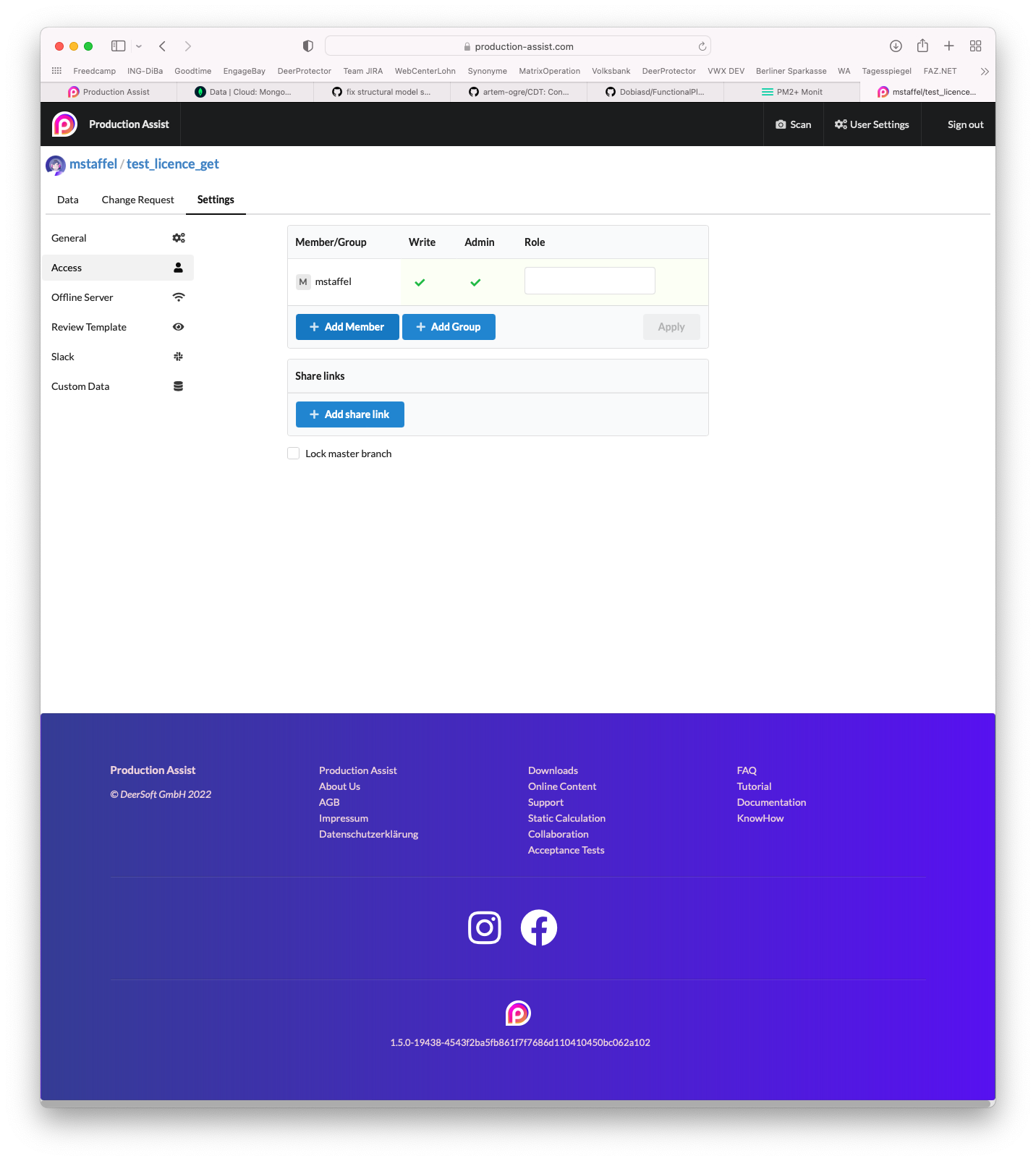 |
| 5 | In the dialog, select the users who should work on the project. Attention You can only invite as many users as you have seats with Pro Teams. | 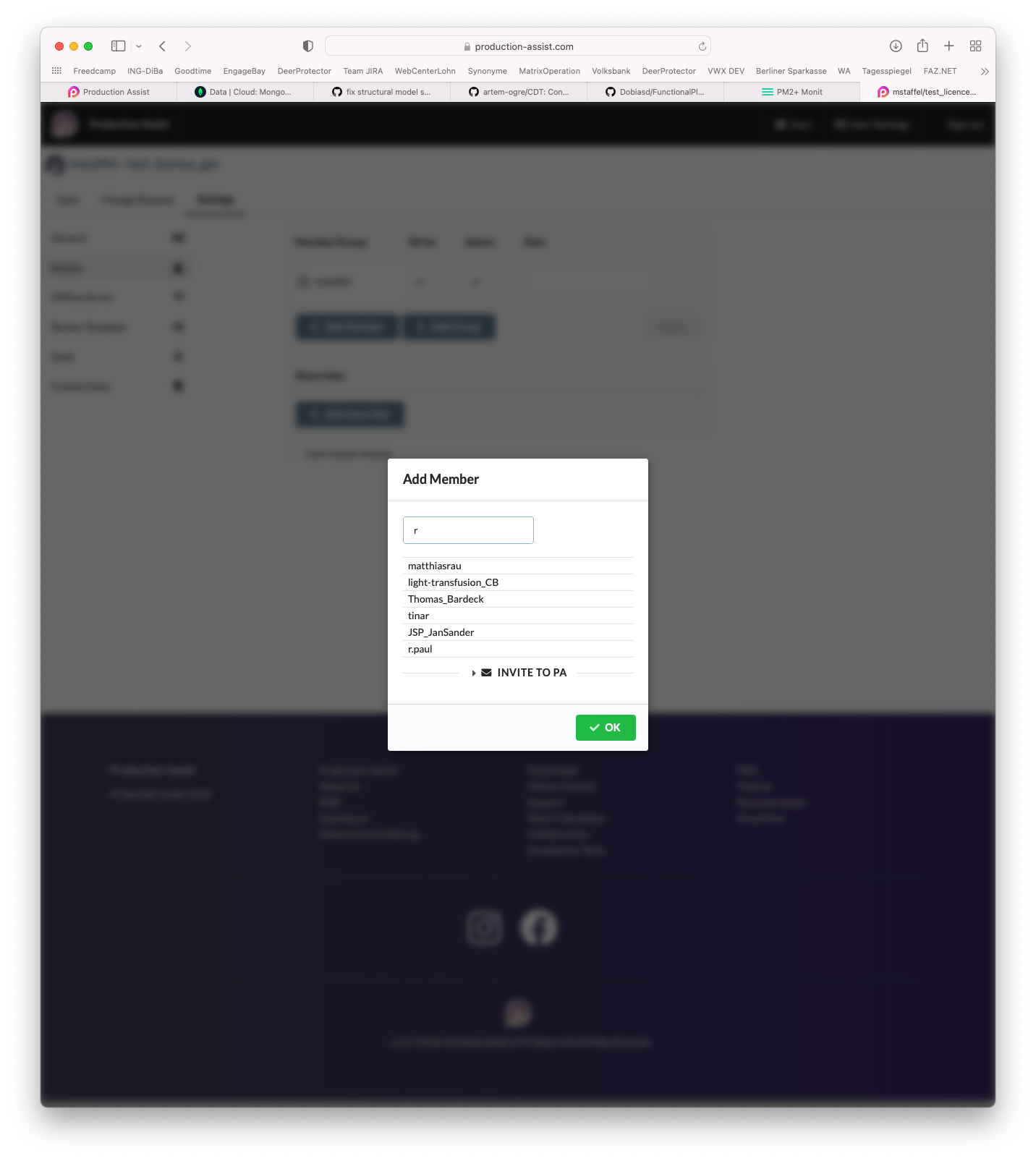 |
| 5 | 🎉🎉🎉 Your colleagues can now use Pro Teams and collaborate with you! | |
| 6 | Optional: Add the user as a shared license user. More on that below. | |
Important The instructions above describe how to work with other people on a project. This means that the Pro Teams functions for the collaborator are only available in this project. If you want your Pro Team license to be available for every project he works on, add him as a Shared License User . This is described in step 6.
Note The number of collaborators available in an account is in principle unlimited. The number of seats for the Pro Teams licenses only affect how many users are allowed to have write rights in a project and how many users you can add as shared license users .
An example is an account with 10 Pro Teams Seats. He can share his Pro Teams license with 10 people. But he can also work with 10 people in project A and with another 10 other people in project B.
By default, all user accounts are created as normal users . The following table provides an overview of the differences.
| Function | Normal User | Organisation |
|---|---|---|
| Collaborators can be invited to projects | ✅ | ✅ |
| Collaborators can use the license in these projects | ✅ | ✅ |
| Collaborators can create projects | ❌ | ✅ |
| Collaborators can access the User Content | ❌ | ✅ |
To change the type, you must do the following:
| Step | Description | Image |
|---|---|---|
| 1 | Open the user settings on the Production Assist website and select the Account & Billing tab | 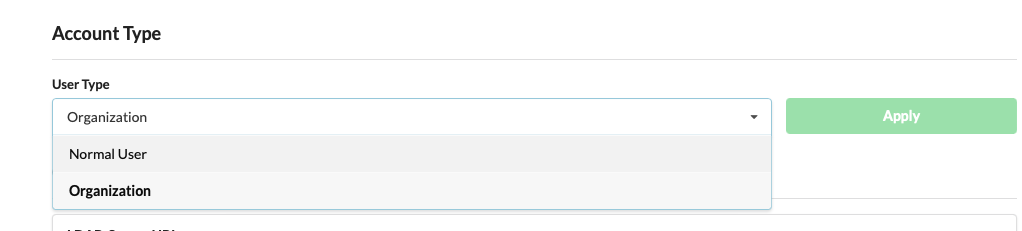 |
| 2 | Go to the Account Type section and change the type to Organization . The changes will take effect automatically. | 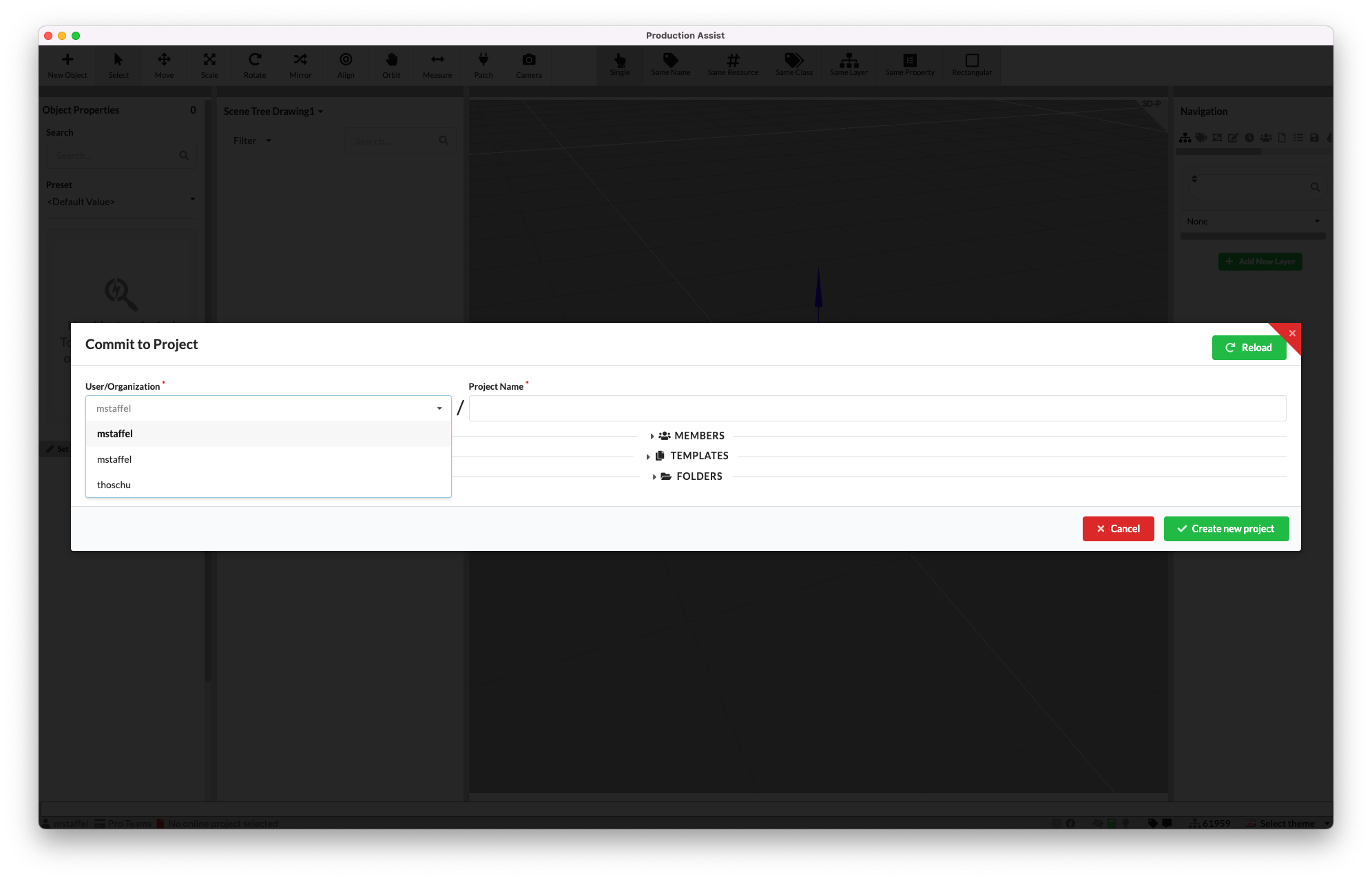 |
If you start with a new drawing and want to use the Pro Teams version in it, the drawing must be connected to an online project once.
| Step | Description | Image |
|---|---|---|
| 1 | Simply start a new drawing in the Production Assist App or in Vectorworks and click PA Cloud -> Commit Changes in the Production Assist Menu Bar | 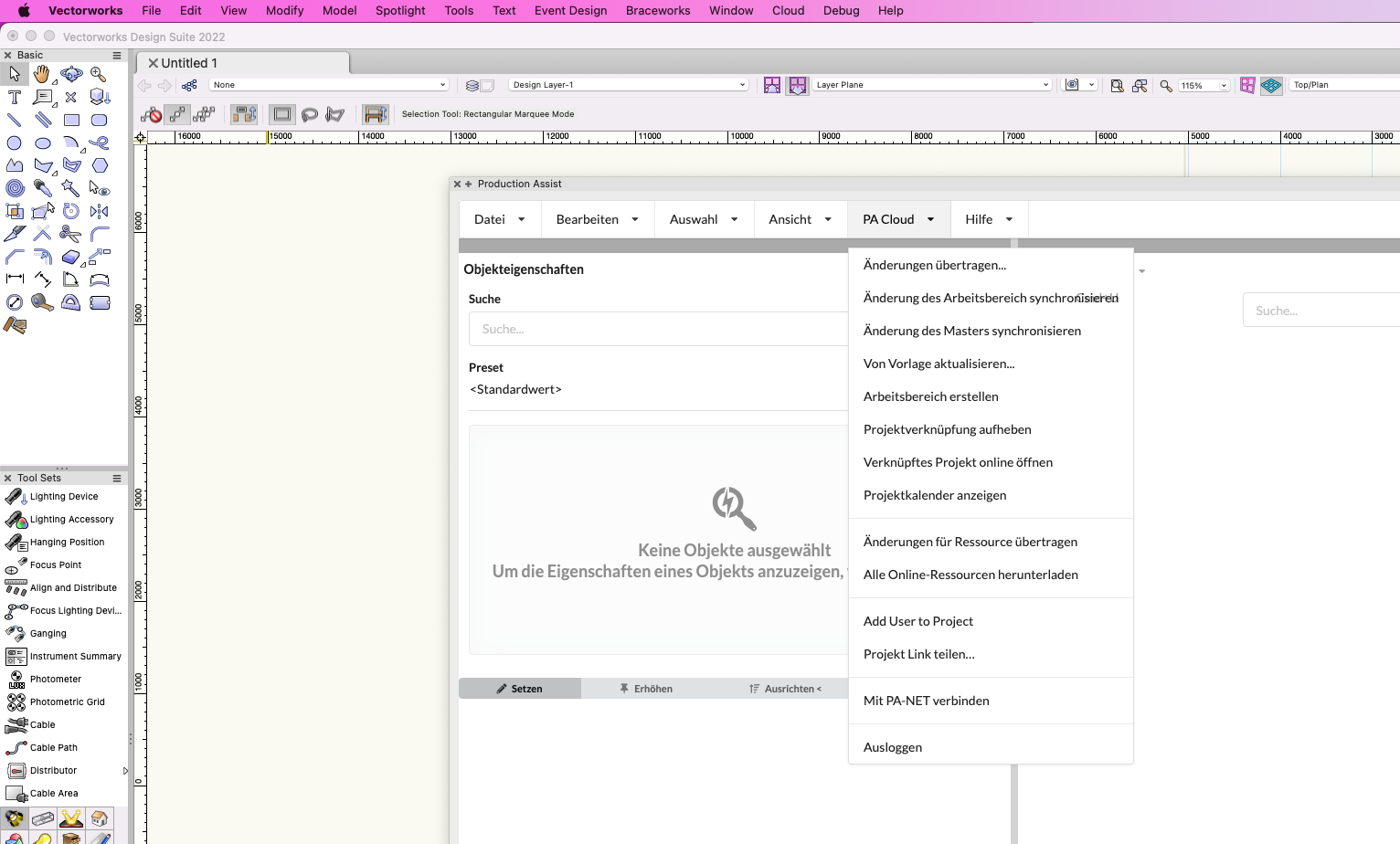 |
| 2 | In the User/Organization field, select the organization you want to use the project in, give the project a name and click Create new project | |
| 3 | 🎉🎉🎉 You can now use the pro team functions in the drawing! |