

You need a Production Assist account to sign in to the desktop app and work with online projects. You can open the Download page without signing in. After installation, sign in to the desktop app with your account.
$, -, _, ., and +. Spaces are not allowed.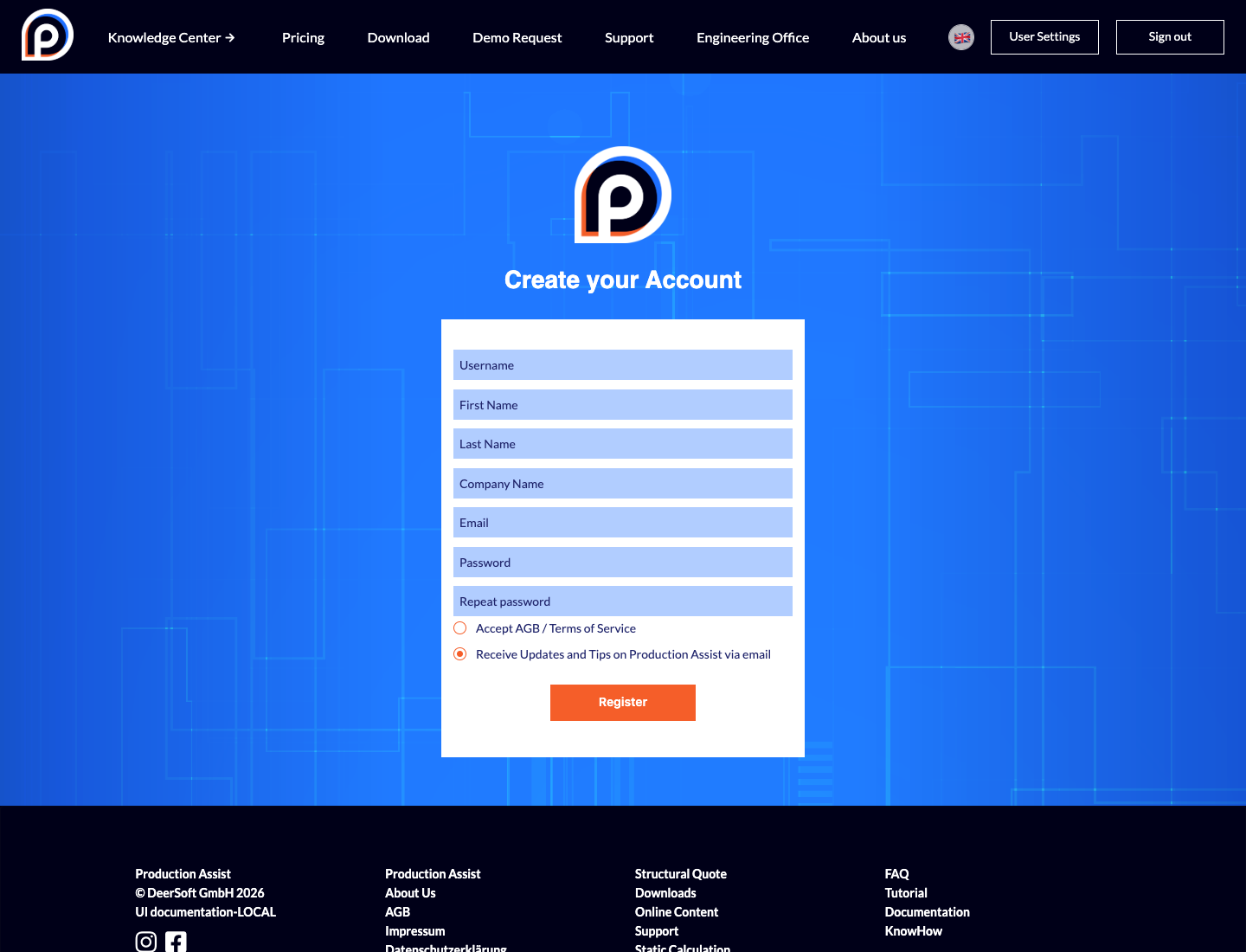
Production Assist creates an initial project for your account during registration. The new account starts on the free Community plan; you can change the plan later in account settings. On Let's get started!, you can also create a new project from a template for a concert/show, trade fair, or theater. Select Start with an empty project... to go to the start page without an additional template. You do not need to choose a template before filling out the form.
If you register using a trainer voucher, open the invitation link and continue registration in the same browser tab. Use the email address that received the voucher. After successfully registering or signing in using the buttons in the voucher flow, you will return directly to redemption. Only there do you select the edition and confirm the start of the trial period; no payment details are needed for this redemption. Requirements and instructions are described in Trainer Vouchers.
If you received an email invitation to a project and do not have an account yet, open the registration link in the invitation and register through it. Production Assist carries over a pending invitation when you create your account. You can then open the invited project with your own account.
If the form shows an error, first check the required fields, email address, and whether the two passwords match. The username and email address must not already be in use by another account. Correct the value identified in the error and select Register again.
For instructions on changing your profile details, password, or display name, or managing a signing certificate after registration, see Account Profile and Security.
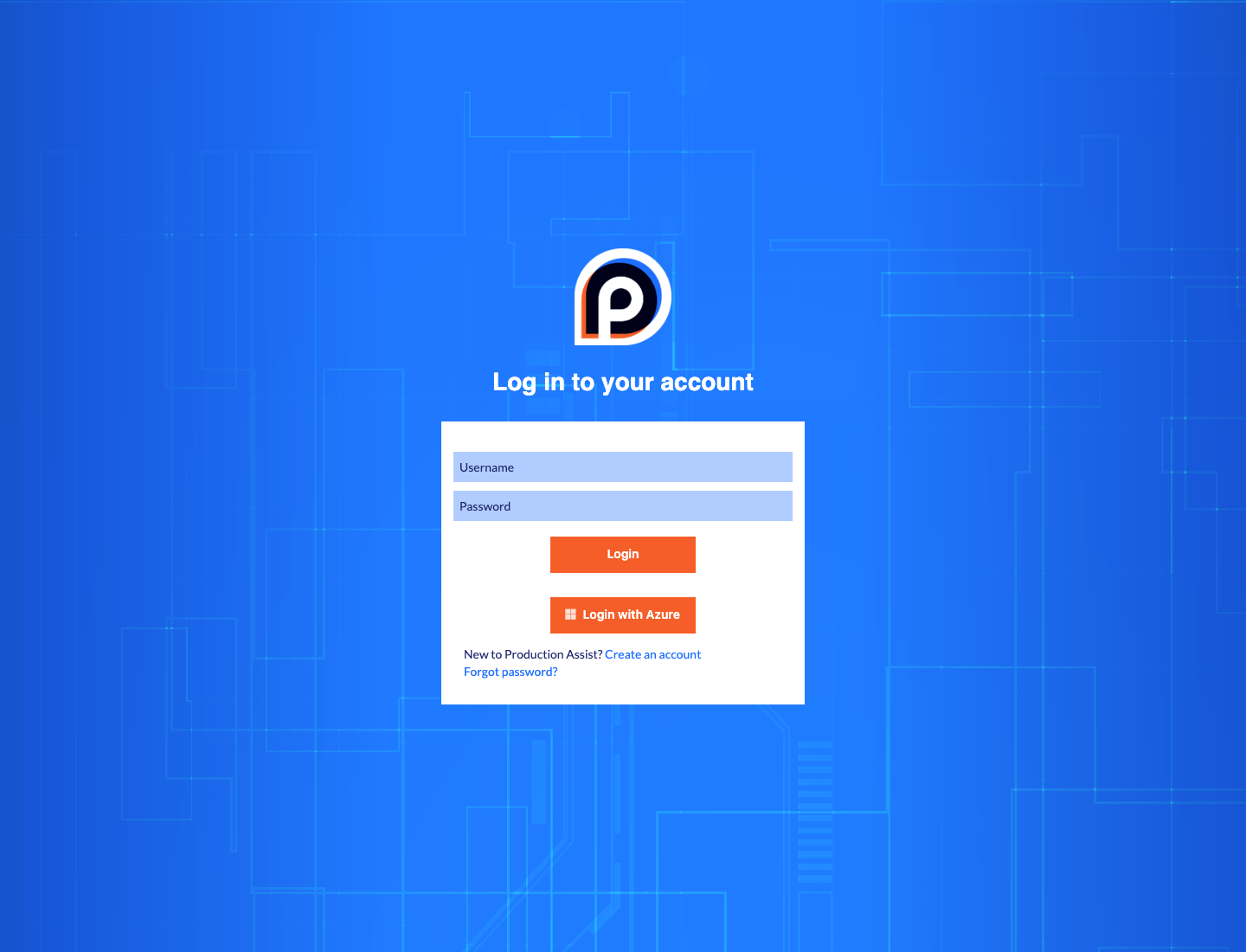
If Remember login on this computer is displayed, you can enable it before signing in. It appears only when saving credentials on this device is supported. Production Assist may reuse saved credentials at a later sign-in.
Sign in with Azure is for accounts configured for Microsoft Entra sign-in. First enter your Production Assist username or the associated email address, then select Sign in with Azure. Microsoft sign-in opens in a browser. This method cannot be completed if the account does not have a matching Entra configuration. Setup is described in Set up the Microsoft Entra connection for Production Assist.
If Log in... does not work, check that the username is entered correctly. If the account is found but sign-in fails, check the password or reset it.
For information on setting, changing, and resetting your password and username rules, see User Account and Password.