

On the Production Assist website, open User Settings in the upper-right corner. The menu on the left links to Profile, Account & Billing, Security, Review Templates, Update Projects, and Settings. Authorized trainers also see Training vouchers. If you manage multiple accounts, use the Account Administrator selector to switch accounts; the settings area and URL change with it. Trainer access and vouchers remain tied to the signed-in account. The screenshot shows the settings area with an example account and its Profile section open.
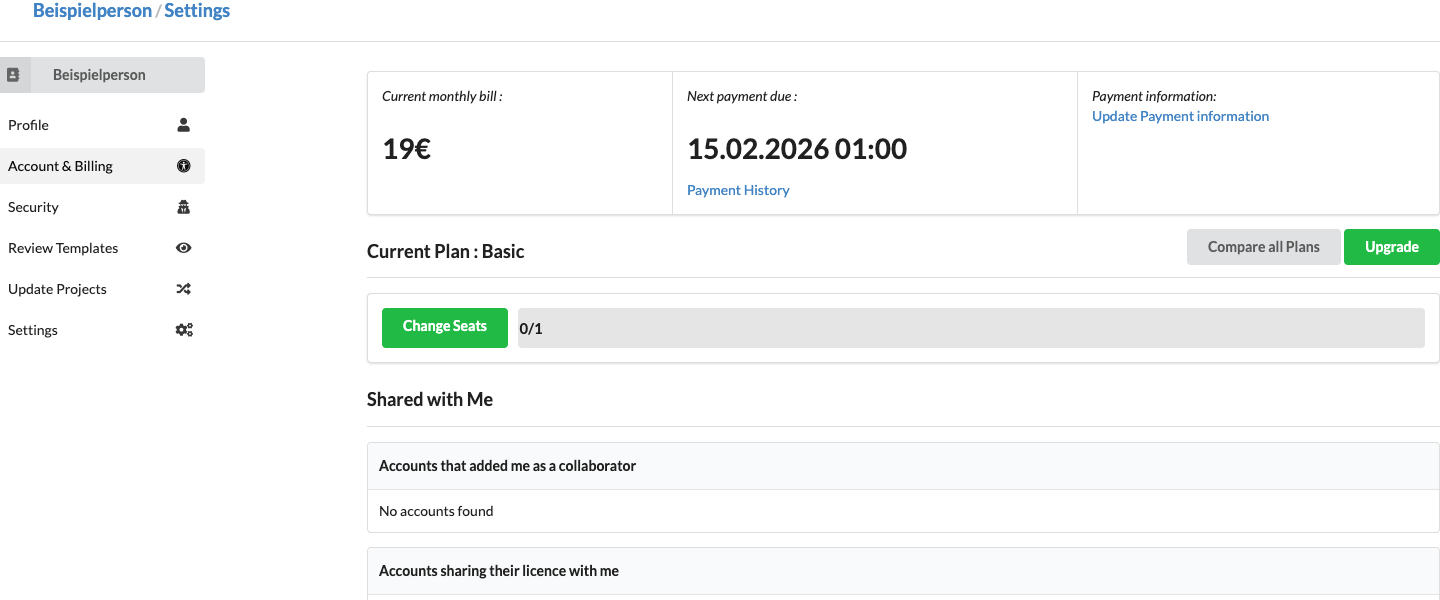
Find your plan, payment details, and invoices under Account & Billing; see Change your subscription. This page describes Profile and Security. Separate guides cover Project Templates and Settings.
The trainer feature, its permissions, and voucher expiration are described in Training vouchers.
The Training vouchers area always opens the personal trainer overview. When you switch the managed account, this area remains associated with the signed-in trainer account. Date filters include all selected days in your local time zone. By contrast, Account & Billing displays the trial period and a scheduled plan for the currently selected account. An active Pro Teams or Arena voucher provides five license seats there, while Stripe lists the subscription as free in the selected trial edition. A paid subsequent plan is shown separately; the native offline license remains usable without change until the regular online update.
Under Profile, you can add a profile picture, title, and phone number. Select Set Picture to choose an image in JPG, JPEG, PNG, BMP, TIFF, or GIF format. Edit Title or Phone Number, then confirm by pressing Enter or leaving the field. Both values are saved together if the phone number is valid. If the phone number field is empty, the website shows no error but does not submit the profile change. If you enter an invalid, non-empty phone number, the website displays an error and does not save the profile change.
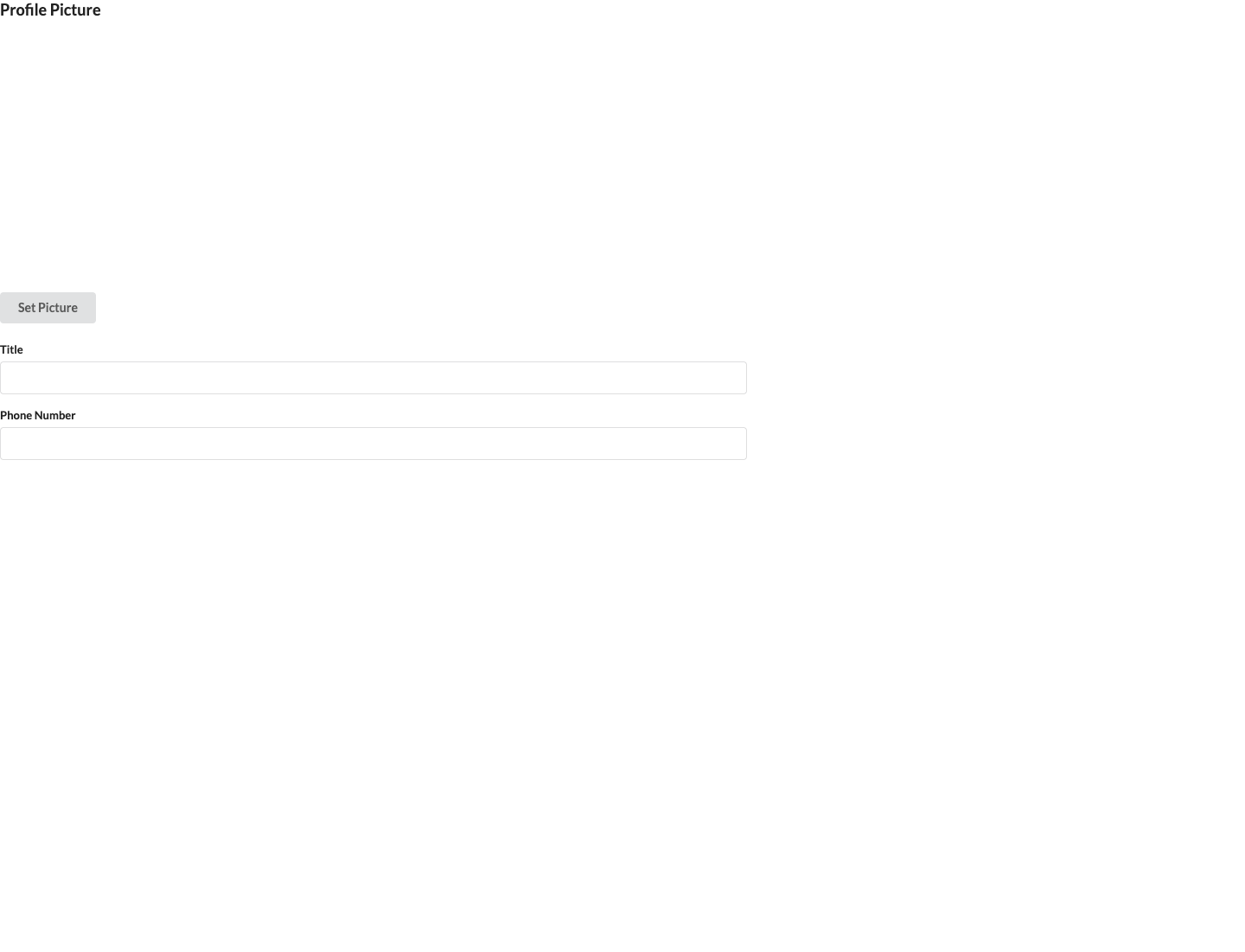
The empty fields in the example image are optional.
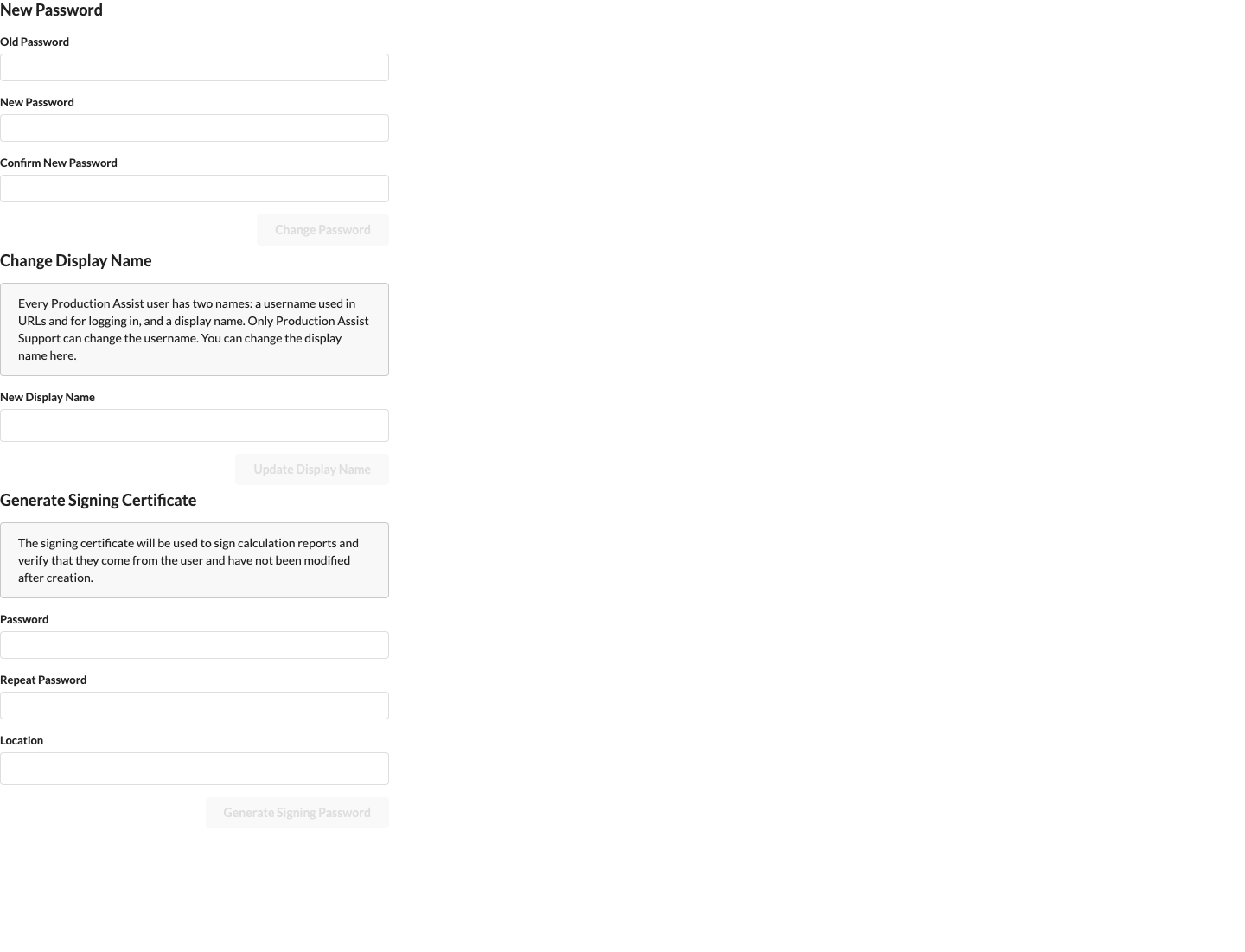
Under Old Password, enter your current password. Enter your new password under New Password and Confirm New Password. Change Password becomes available when the old and new passwords are entered and the two new values match. If you do not know your current password, use Reset your password instead.
Under Change Display Name, enter a New Display Name and save it with Update Display Name. Production Assist uses the display name where it shows your name. Your username is used to sign in and in your account address; according to the notice in the interface, only Production Assist Support can change it.
Under Generate Signing Certificate, you can create a signing certificate for calculation reports. Enter the same password in Password and Repeat Password, and enter the Location. Generate Signing Password becomes available only after both passwords match and the location and password are entered. Submitting the form clears its fields. The certificate and its use when exporting structural calculations are separate from your account password.
Authorized engineers also use this certificate when they upload an unsigned report from disk.