
🇬🇧

Documentation

Glossary

Exporting and importing TradeShowLoads data#

TradeShowLoads uses .tsle files for trade fair load data. Export calculates the current drawing and saves a load overview and support points for motors and bridles. The fair, hall, booth, and company identify the event.

Export trade fair load data#

  1. Choose Rigging → Export TradeShowLoads... or File → Export TradeShowLoads....
  2. In the Export Trade Show Data dialog, enter the trade fair name, hall, booth, and company, then confirm with OK.
  3. Choose a path for the .tsle file in the save dialog.

Export calculates the drawing. If the structural system cannot be calculated, Production Assist displays calculation errors. Review the calculation and saved load data before sharing the file.
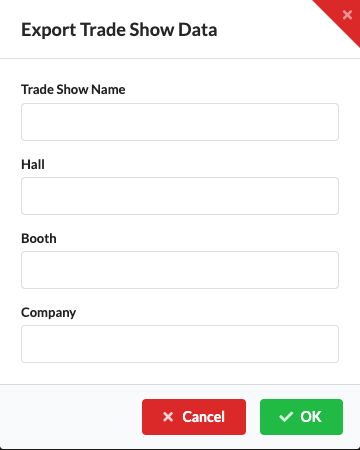
Export Trade Show Data dialog with fields for the trade fair, hall, booth, and company

Import trade fair load data#

During import, Production Assist displays the event details and load overview for review. The load overview is for display only. Import creates new objects from the Points at their saved positions. Existing load objects are not automatically matched or overwritten.

  1. Choose Rigging → Import TradeShowLoads... or File → Import TradeShowLoads..., then open a .tsle file.
  2. Review the trade fair, hall, booth, company, date, load overview, and points. If needed, assign a symbol definition to a point in the Symbol column.
  3. Confirm with OK. Production Assist creates a new object for each point, using its name and position, and assigns its force as the weight.
  4. Then check the placement and values of the new objects in the drawing.

The UI-renderer screenshot shows the import dialog with no data loaded. In the current UI, the dialog is also called Export Trade Show Data, even though it opens from the import command.
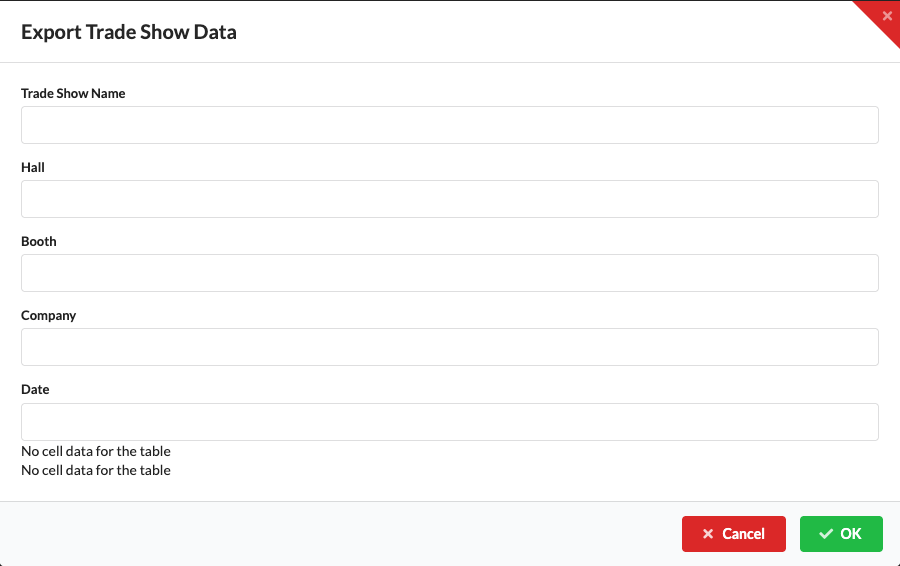
TradeShowLoads import dialog with no data loaded