

Keyboard shortcuts run commands or switch tools in the Renderer. The table lists the desktop app's default shortcuts. If you change a shortcut, the value shown in the Short Cuts in Production Assist dialog applies. Most shortcuts that use letter keys do not activate tools while you type in text fields.
CommandOrControl means Command (⌘) on macOS and Control (Ctrl) on Windows and Linux. Shift is the Shift key; on macOS, Alt is the Option key. num0 through num9 refer to the numeric keypad keys.
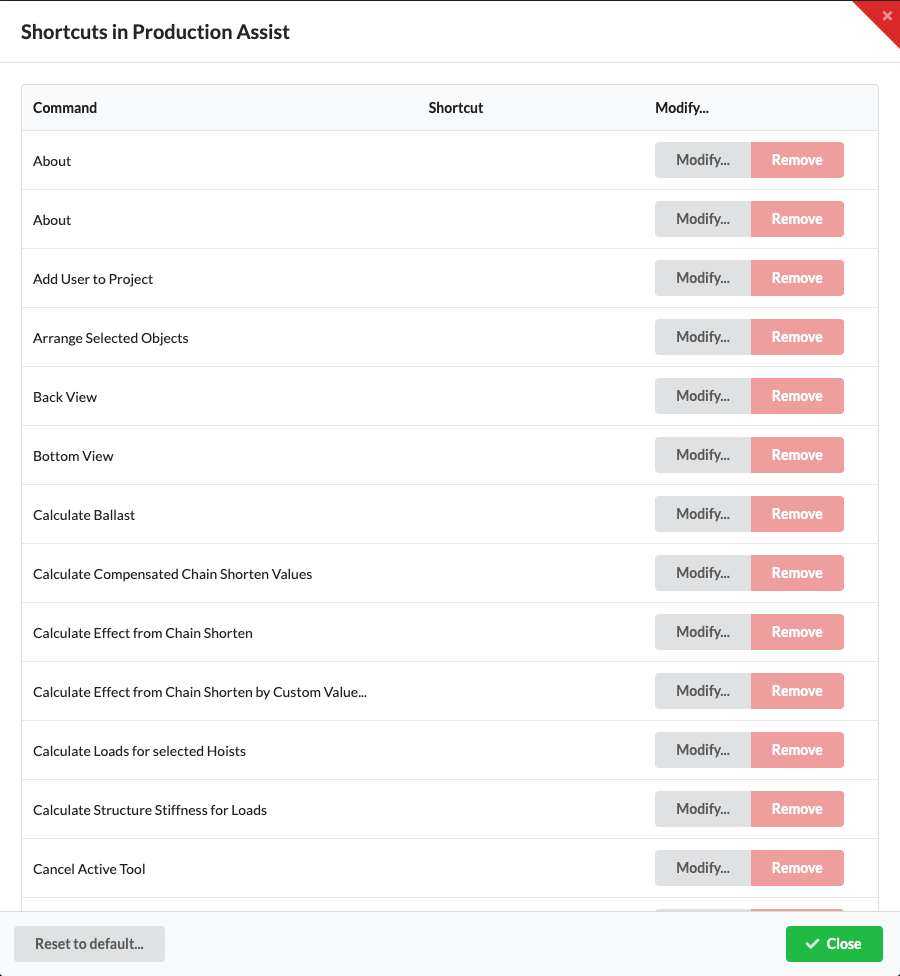
The rendered example shows saved keys for selected commands; in the app, the dialog shows your own assignments. The table heading is Command. Remove deletes an assignment immediately. Reset to default... asks for confirmation, then restores the default shortcuts. Close reloads the interface so saved shortcuts become active.
| Command | Default shortcut |
|---|---|
| New drawing | CommandOrControl+N |
| Open drawing | CommandOrControl+O |
| Save | CommandOrControl+S |
| Save As | CommandOrControl+Shift+S |
| Close drawing | CommandOrControl+W |
| Copy | CommandOrControl+C |
| Cut | CommandOrControl+X |
| Delete selected objects | Delete |
| Undo | CommandOrControl+Z |
| Redo | CommandOrControl+Shift+Z |
| Duplicate | CommandOrControl+D |
| Duplicate along +X | A |
| Duplicate along −X | D |
| Duplicate along +Y | W |
| Duplicate along −Y | S |
| Duplicate along +Z | Y |
| Duplicate along −Z | Q |
| Edit defining resource | CommandOrControl+. |
| Edit object definition | CommandOrControl+I |
| Edit object name | N |
| Edit object ID | O |
| Select all | CommandOrControl+A |
| Deselect all | Escape |
| Expand all | CommandOrControl+Shift+K |
| Collapse all | CommandOrControl+K |
| Select previous object | Up |
| Select next object | Down |
| Select parent object | Left |
| Select child object | Right |
| Add previous object to selection | CommandOrControl+Shift+Up |
| Add next object to selection | CommandOrControl+Shift+Down |
| Add parent object to selection | CommandOrControl+Shift+Left |
| Add child object to selection | CommandOrControl+Shift+Right |
| Move selected objects right | Shift+Right |
| Move selected objects left | Shift+Left |
| Move selected objects forward | Shift+Up |
| Move selected objects backward | Shift+Down |
| Move selected objects up | Shift+Alt+Up |
| Move selected objects down | Shift+Alt+Down |
| Create assembly sheet | CommandOrControl+J |
| Create dimensions | CommandOrControl+Y |
| Merge selected objects | CommandOrControl+Shift+M |
| Group selected objects in an assembly | CommandOrControl+G |
| Power Patch 1:1 | CommandOrControl+P |
| Power Patch Fill | CommandOrControl+Alt+P |
| Data Patch | CommandOrControl+L |
| Delete Power Patch | CommandOrControl+Shift+P |
| Delete Data Patch | CommandOrControl+Shift+L |
| Run structural calculation | CommandOrControl+T |
| Select system objects | CommandOrControl+F |
| Zoom to selection (in 2D, fit all visible objects if nothing is selected) | F |
| Front view | num2 |
| Back view | num8 |
| Left view | num4 |
| Right view | num6 |
| Top view | num5 |
| Bottom view | num0 |
| Front-left view | num1 |
| Front-right view | num3 |
| Rear-left view | num7 |
| Rear-right view | num9 |
| Switch between perspective and orthographic 3D camera (Isometric View in the menu) | V |
| Synchronize workspace with Master | CommandOrControl+U |
| Open online help | CommandOrControl+Shift+H |
| Open online glossary | CommandOrControl+Shift+G |
| Cancel active tool | Escape |
| Complete active tool | Enter |
| Move objects | M |
| Rotate objects | R |
| Single selection | X |
| Select objects with the same name in the scene | CommandOrControl+Alt+Shift+S |
| Select objects with the same name in the assembly | C |
| Rectangular selection | B |
| Show QR code scanner | G |
X switches to the single-selection tool. Escape cancels the active tool and, depending on the context, also clears the selection. If a tool processes a sequence of points, Enter can complete it. Shortcuts may differ if you changed them in the dialog.
The arrow keys here refer to the hierarchy in the Scene Tree: Left selects the parent object, Right selects a child object, Up selects the previous object, and Down selects the next object at the same level. Add CommandOrControl+Shift to add the corresponding object to the selection. These assignments therefore differ from the Shift+arrow shortcuts for moving objects in the Renderer.
The default shortcut for Save As is CommandOrControl+Shift+S. The shortcut for Select objects with the same name in the scene is CommandOrControl+Alt+Shift+S.
These keys have tool-specific functions when inserting or rotating objects in the Renderer:
| Action | Key |
|---|---|
| Rotate an inserted truss around its axis | Shift |
| Switch between the magnets of the truss being inserted | Control |
| Switch between rotation points while rotating | Control |