GDTF stands for "General Device Type Format". This is a uniform data exchange format between intelligent spotlights, CAD programs and visualizer software. In this format, all the properties of a spotlight are described in detail. Once each lamp type has been defined by lighting manufacturers, each software uses the same information about data, geometries and control. This drastically simplifies data exchange between devices. GDTF is an open-source format.
To import a GDTF file into your drawing or project, you can select Import GDTF via the menu bar under the menu item File. A window will open where you can import a GDTF file from your local resources.
In addition, it is possible to import by using the tool New Object - GDTF on the toolbar. In the window that opens, you can click on Import in the upper right corner.
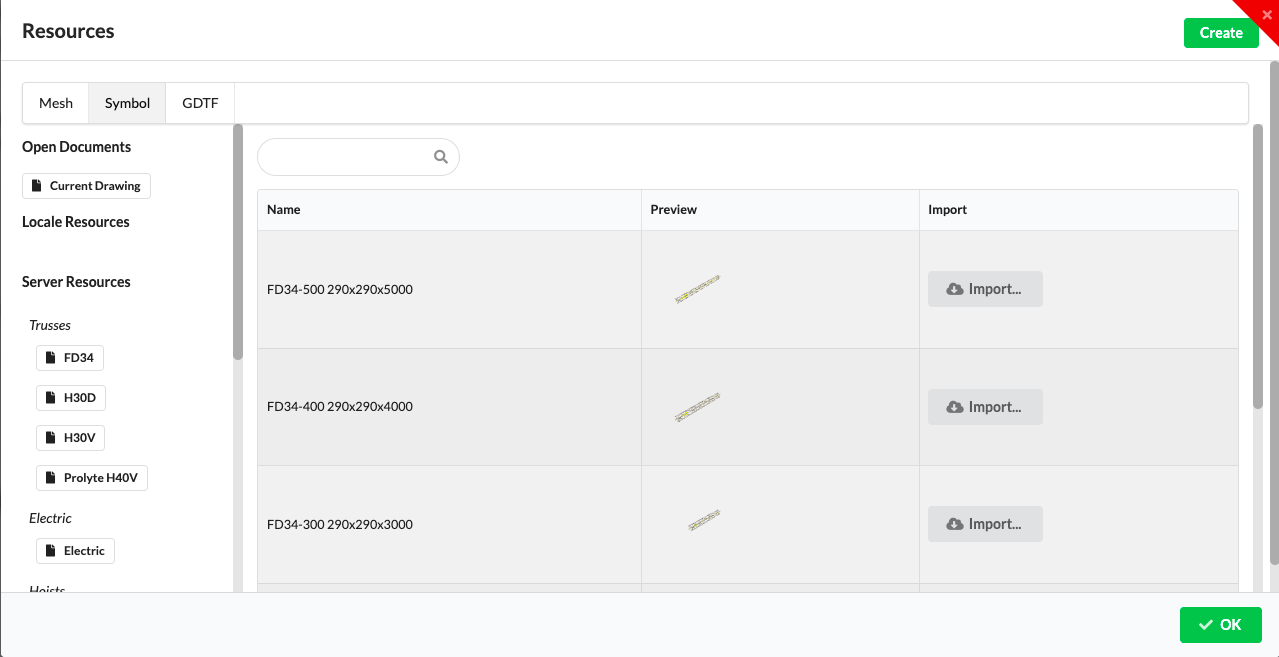
Spotlights - so-called fixtures – can also be inserted using GDTF by clicking on New Object on the toolbar. Select GDTF and choose your already imported spotlight object that you want to insert.
MVR stands for "My Virtual Rig". It is a bidirectional exchange format for data and geometries between CAD programs, visualizer software and light consoles.
To import an MVR file into your drawing or project, you can select Import MVR via the menu bar under the menu item File. A window will open where you can import an MVR file from your local resources.
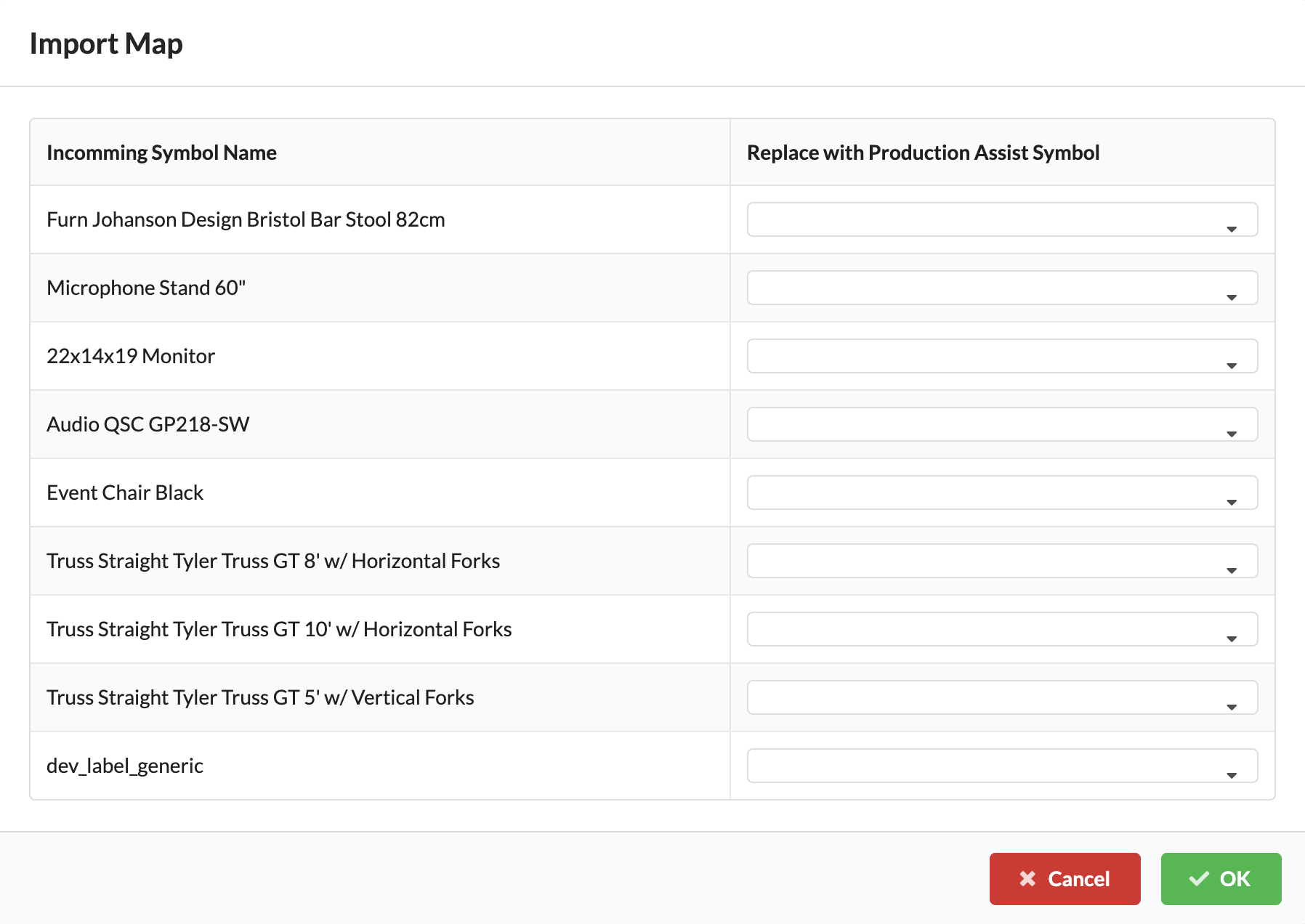
The Import Map Window opens. Here all MVR symbols can be replaced with Production Assist symbols. MVR symbols mainly contain 3D geometries, but no intelligent Production Assist geometries such as cross-sections, electrical connections or the like and therefore do not allow the full range of functions available in Production Assist.
All Production Assist symbols available in the Server Resources and in your Local Resources are available for replacing MVR symbols.
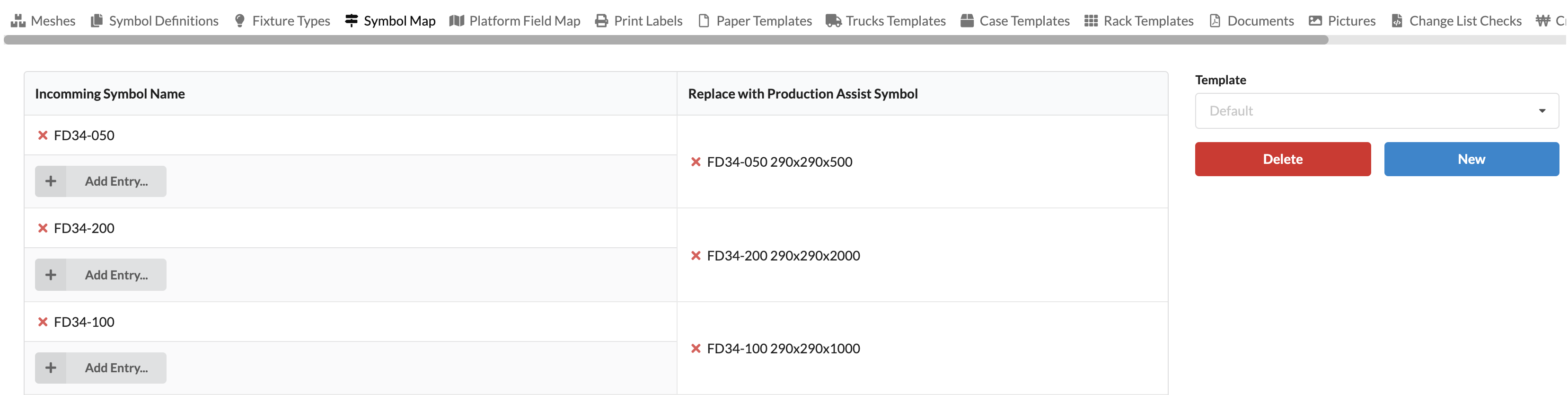
The selection of symbols is stored online and synchronized live. The assignment of an MVR symbol to a Production Assist MVR therefore only has to be specified once and can be adapted or altered later in the Resource Manager under Symbol Map. Resource Manager under Symbol Map.